
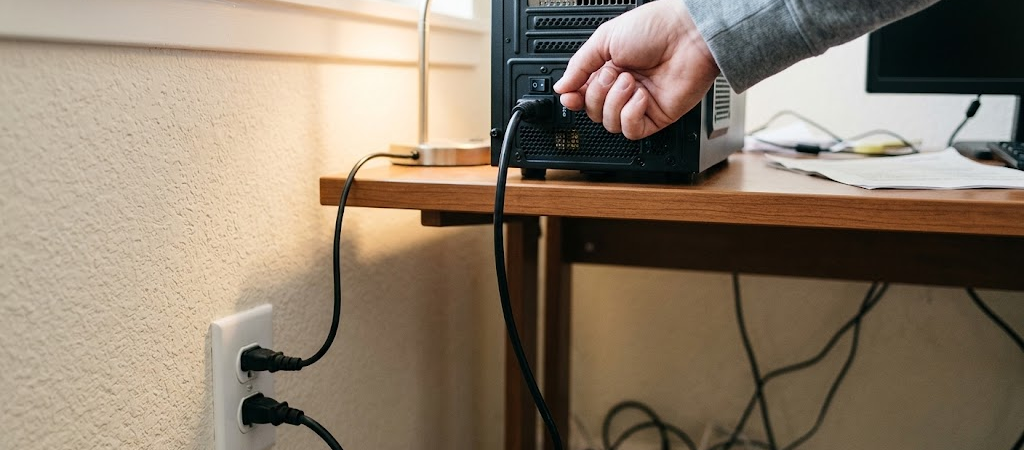
Is your desktop computer completely dead and PC Won’t Turn On when you press the power button? Don’t panic. Before taking it to a repair shop, the issue could be a simple cable connection or a minor hardware glitch. Here are five practical steps you can take right now to fix a PC that won’t turn on.
Quick Answer: What to do if your PC won’t turn on
- Check the main power cord and wall outlet.
- Re-seat (remove and reinstall) your RAM sticks.
- Verify the monitor connection and power.
- Check for internal loose cables (if you built the PC).
- Listen for beep codes or look for error lights on the motherboard.
Method 1: Check Power Connections First (The Basics)
It sounds obvious, but a loose cable is the most common culprit.
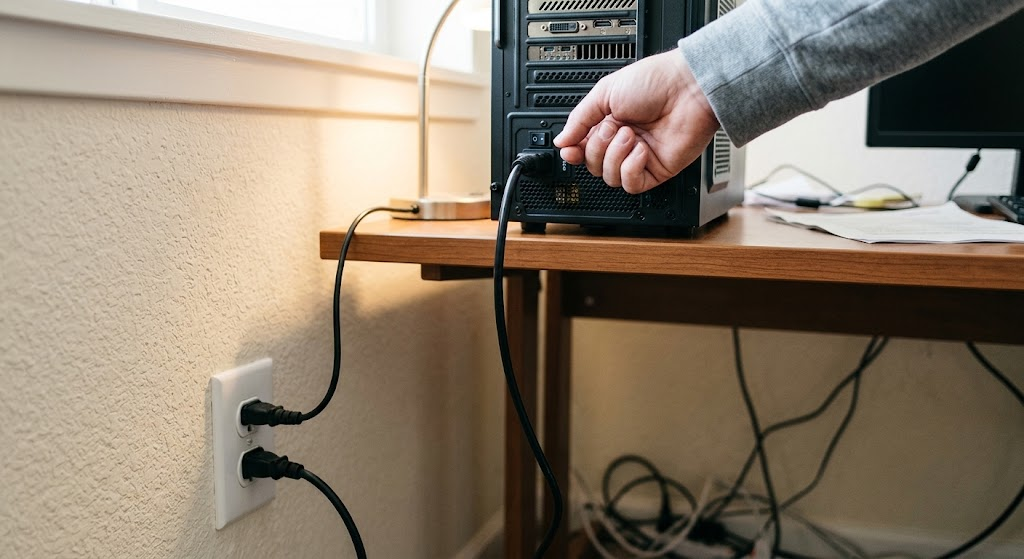
- Inspect the Power Cable: Ensure the main power cord is securely plugged into both the back of your PC (the power supply) and the wall outlet.
- Check the Outlet: Try plugging a lamp or phone charger into the same outlet to confirm it’s actually delivering power.
- Don’t Forget the Switch: If your power supply unit (PSU) has a physical switch on the back, make sure it is flipped to the “I” (On) position, not “O”.
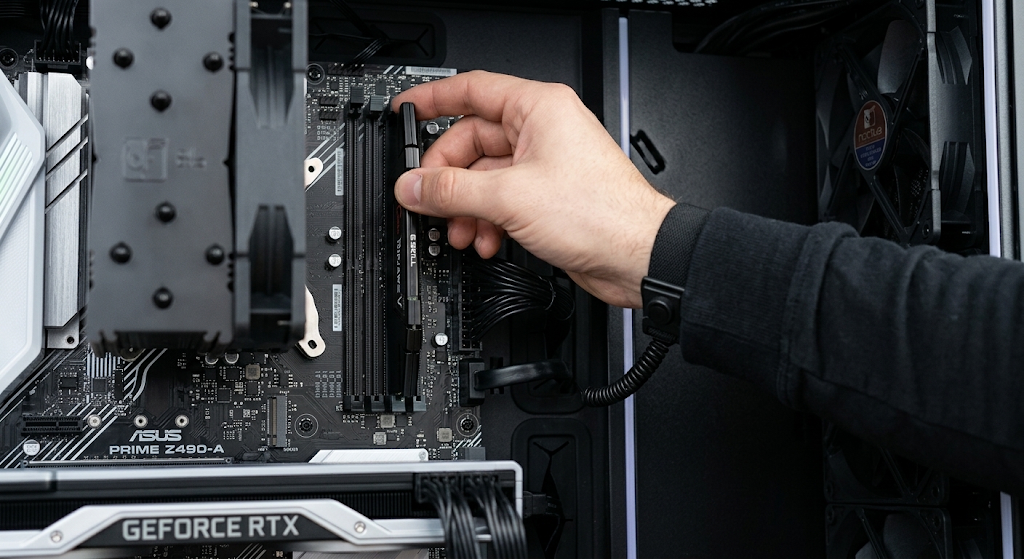
Method 2: Re-seat Your RAM (Memory)
If your PC powers on (fans spin, lights turn on) but the screen stays black, the issue is often related to the RAM.
- Safety First: Unplug your PC from the wall completely.
- Remove RAM: Open your PC case. Locate the RAM sticks and gently press down the clips on either side to release them.
- Clean and Re-install: Use a soft eraser or a microfiber cloth to gently wipe the gold contacts on the RAM. Firmly push them back into the slots until the clips snap into place.
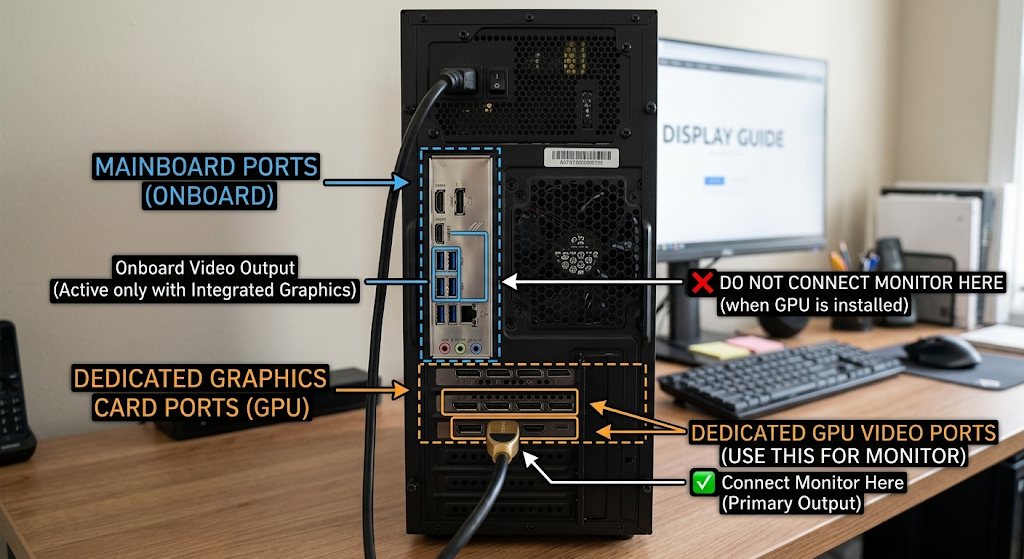
Method 3: Verify Monitor Connections
Sometimes the PC is running perfectly fine, but the monitor is the problem.
- Check Monitor Power: Is the monitor turned on? Look for a standby light.
- Inspect Display Cables: Ensure the HDMI or DisplayPort cable is tightly connected to both the monitor and the back of your PC.
- Crucial Tip for Gamers: If you have a dedicated graphics card (GPU), make sure your monitor cable is plugged directly into the GPU, not the motherboard display port.
Method 4: Check for Loose Internal Components
If you’ve recently moved your PC or if it’s a custom build, vibrations can loosen internal connections.
- Open the side panel (with the PC unplugged).
- Gently press down on your graphics card to ensure it’s fully seated in its PCIe slot.
- Check the thick 24-pin power cable connected to the motherboard and make sure it hasn’t wiggled loose.
Method 5: Listen for Beep Codes or Error Lights
Motherboards have built-in ways to tell you what’s wrong.
- Beep Codes: If you hear a series of beeps when trying to turn on the PC, note the pattern (e.g., one long beep, two short beeps). You can look up this specific code in your motherboard’s manual online.
- Debug LEDs: Modern motherboards often have small lights labeled CPU, DRAM, VGA, or BOOT. If one of these stays lit, it indicates which component is causing the failure.
Frequently Asked Questions (FAQ)
Can a dead CMOS battery prevent a PC Won’t Turn On? Yes. The CMOS battery on your motherboard saves your BIOS settings. If it dies, the PC Won’t Turn On might refuse to boot or display strange errors. Replacing it with a new CR2032 battery is a cheap and easy fix.
When should I replace my Power Supply Unit (PSU)? If you’ve tried all the steps above, the wall outlet works, and there are absolutely no signs of life (no lights, no fan spin), your PSU might be dead. It is recommended to have a professional test it before buying a new one. This issue can cause PC Won’t Turn On symptoms, so consider replacement after a diagnosis.