
Dealing with “No SIM” errors or sudden cellular network drops on your Galaxy phone can completely disrupt your day. Before panicking or heading to a repair shop, here is a definitive guide to resolving SIM card recognition issues right from home.
Quick Answer
To quickly fix a SIM card error on your Galaxy phone, follow these core troubleshooting steps:
- Restart your phone or toggle Airplane Mode on and off for 30 seconds to refresh network signals.
- Power off the device, eject the SIM tray, and gently clean the golden metal contacts with a soft microfiber cloth.
- Navigate to Settings and install the latest Software Update to fix any underlying communication bugs.
- Reset your network configurations safely by going to Settings > General management > Reset network settings.
Method 1: Refreshing Network Signals via Restart and Airplane Mode
Most SIM recognition issues stem from temporary software glitches where the device momentarily loses connection with cellular towers.
- Press and hold your phone’s side button, then tap Restart to completely reboot the system.
- If the error persists after rebooting, swipe down from the top of your screen to open the Quick Settings panel.
- Tap the Airplane Mode icon to enable it and isolate all network radios for about 30 seconds.
- Tap Airplane Mode again to disable it, allowing your phone to fresh-scan for local carrier towers.
Method 2: Inspecting and Cleaning the SIM Card and Tray
If a simple reboot fails, physical debris or a misaligned SIM chip is usually the culprit.
- Power down your Galaxy device completely to prevent any electrical short circuits.
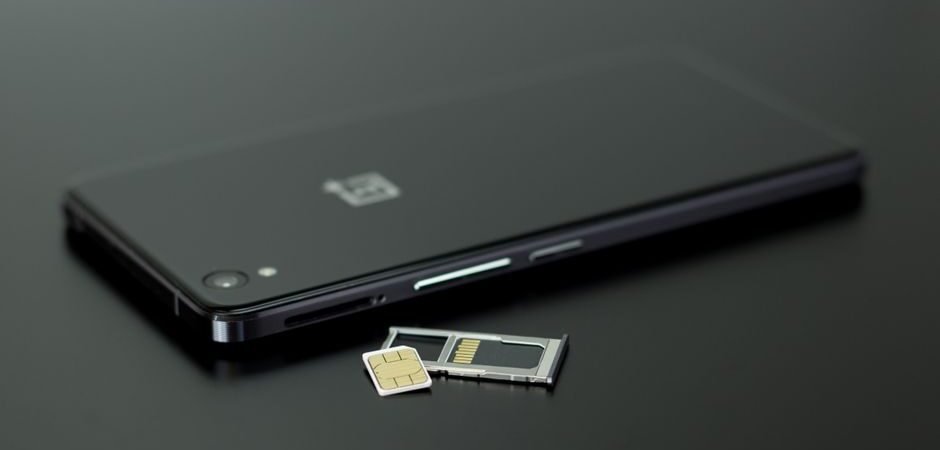
- Insert the SIM ejector tool into the pinhole on the phone’s outer frame and gently pull out the SIM tray.
- Remove the SIM card and wipe the golden metallic contact points gently using a clean microfiber cloth. (Avoid using water, alcohol, or harsh scraping tools.)
- Align the clipped corner of the SIM card with the tray layout, push it back firmly into the slot, and power your phone back on.
Method 3: Executing Network Resets and System Updates
When hardware adjustments don’t work, corrupted system profiles or outdated OS software might be blocking your network connection.
- Open the Settings app, scroll to Software update, and select Download and install to ensure your system has the latest carrier stability patches.
- If your software is already up to date, head back to Settings and select General management.
- Tap Reset, then choose Reset network settings.
- Tap Reset settings to confirm. (Note: This will safely clear out buggy Wi-Fi, Bluetooth, and mobile data profiles back to factory defaults without deleting your personal photos or documents.)
FAQ
Q: I tried putting my SIM card into another phone, and it still wasn’t recognized. Is my SIM broken? A: Yes. If cross-testing proves that the SIM card fails on multiple devices, the issue lies with the SIM chip itself due to wear and tear or internal circuitry damage. You will need to visit your carrier store to request a replacement SIM card.
Q: My phone took a heavy drop or water damage right before the SIM stopped working. Should I keep re-inserting it? A: Absolutely not. If your phone has experienced severe physical impact or water exposure, a SIM error usually points to a detached internal modem circuit or a bent pin inside the SIM slot. Forcing tools or repeatedly swapping the tray can cause permanent hardware damage; take it to an authorized service center immediately.