
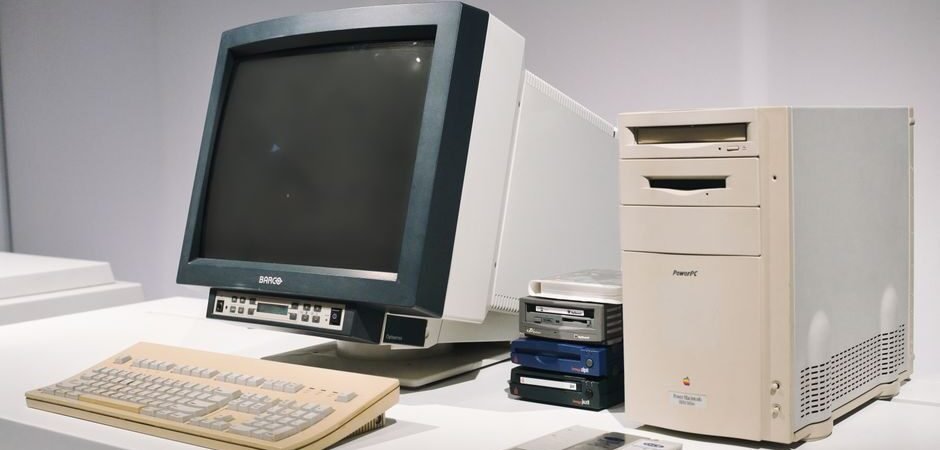
If your PC crawls through startup or sits frozen for ages after the desktop appears, the culprit is usually overloaded startup programs, drive trouble, or background tasks — not a computer on its last legs. Walk through these in order and you can often fix it without buying a single new part.
This happened to me recently: my PC took minutes to wake up, and I almost went out and bought a new one. Then I trimmed my startup apps and turned on Fast Startup — and the difference was immediate. The good news is that most slow boots are settings, not dying hardware.
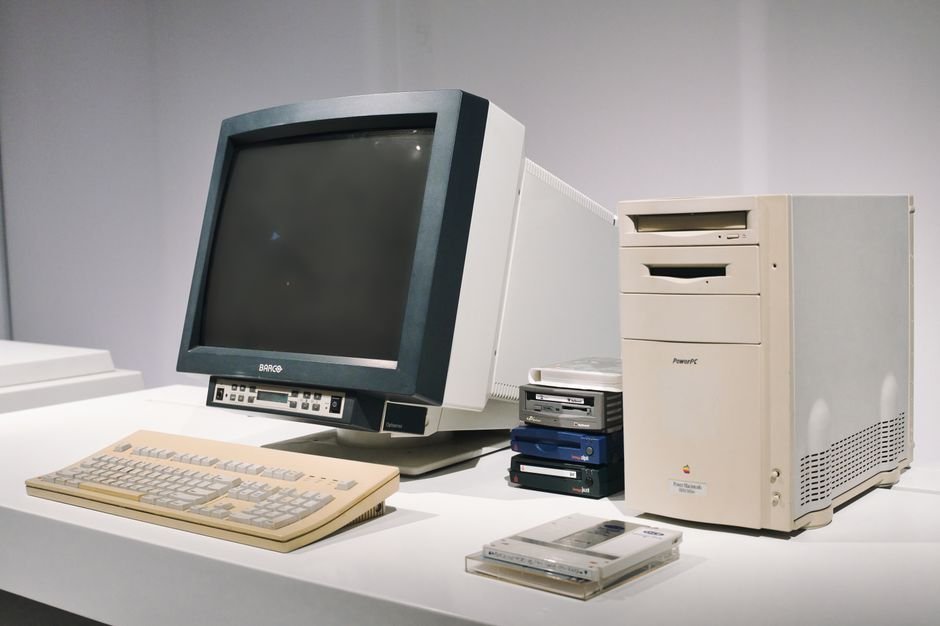
Why Your PC Boots So Slowly
Most slow boots trace back to one of a handful of causes. Figuring out when the slowdown happens is the fastest way to pinpoint it.
| Symptom | Likely cause |
|---|---|
| Slow from the moment you press power | Too many startup programs or a struggling drive |
| Unresponsive after the desktop appears | Background tasks or startup apps |
| Slowed after a specific update | Windows update or a driver issue |
| Gradually getting slower over time | Low storage space or an aging disk |

1. Trim Your Startup Programs
The single most common cause of a slow boot is simply too many programs launching at once. Open Task Manager (Ctrl + Shift + Esc), switch to the Startup tab, and disable anything you don’t need at boot. Keep your antivirus and graphics-driver helpers enabled — those you can leave alone.
2. Turn On Fast Startup
Windows 10 and 11 include a “Fast Startup” mode that shaves seconds off boot time. In Control Panel → Power Options → “Choose what the power buttons do,” make sure Turn on fast startup is checked. If the option is greyed out, click “Change settings that are currently unavailable” at the top first.
3. Free Up Storage Space
When your C: drive is more than 90% full, both boot and overall speed take a hit. Head to Settings → Storage and clear temporary files and the Recycle Bin, then uninstall programs you no longer use.
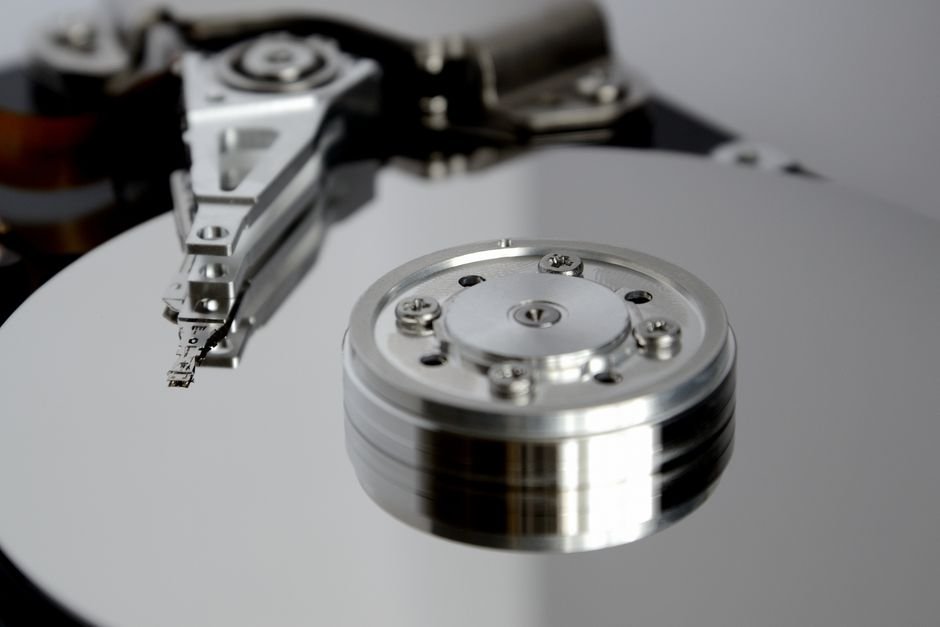
4. Check Your Drive’s Health
If boot has slowed over time, your storage drive may be the bottleneck. An old spinning hard drive is the usual suspect — swapping it for an SSD delivers the biggest single speed improvement you can make. In Task Manager’s Performance tab, watch whether disk usage stays pinned at 100% after boot.
5. Finish Pending Windows Updates
Whether you’re on Windows 10 or 11, updates running in the background will drag everything down. Open Settings → Windows Update; if anything is mid-install, let it finish and restart. A machine that slowed right after an update may also need a driver refresh.
6. Disable Unnecessary Background Apps
Some apps keep running in the background even when you’re not using them. In Settings → Apps, turn off background permission for anything that doesn’t need it. Cloud-sync and auto-update tools that all fire at once right after boot are a common cause of that “sluggish” feeling.
7. Run a Malware Scan
If the slowdown came out of nowhere, run a full scan via Windows Security → Virus & threat protection. While you’re at it, review any recently installed programs from unknown sources.
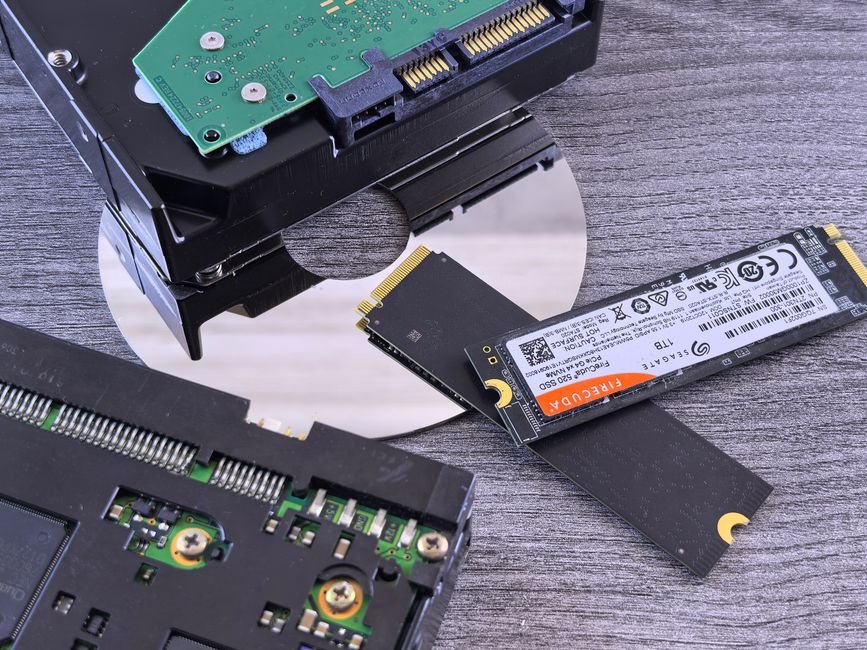
Still Slow? Consider Hardware Upgrades
If software tweaks hit their limit, two upgrades move the needle most: replace an old hard drive with an SSD, and add more RAM. Both can dramatically cut boot time when settings alone aren’t enough.

Final Thoughts
It’s tempting to assume a slow-booting computer is dying, but in most cases the real cause is crowded startup programs, low storage, or background tasks. Start with the startup list and Fast Startup, then check storage and drive health — and remember, an old HDD-to-SSD swap is the single biggest win. Bookmark this checklist for the next time your PC drags its feet, and share it with anyone still waiting minutes for their desktop to wake up.
Photo credits: Pexels contributors.