

Your phone or laptop shows a full WiFi signal and says “Connected,” yet nothing loads — no pages, no apps, no nothing. A warning icon or globe appears on the WiFi icon, and it’s maddening. The good news: this is rarely a hardware fault. It’s usually an IP address conflict, a DNS issue, a router state problem, or a corrupted network setting — and you can fix most of these yourself in a few minutes.
The first thing to figure out: is it just your device, or is the whole house down? If your phone works on the same WiFi but your laptop doesn’t, the problem is your device. If nothing in the house connects, the router or the internet line is likely to blame. Narrowing that down first saves a lot of time.
1. Forget the WiFi Network and Reconnect
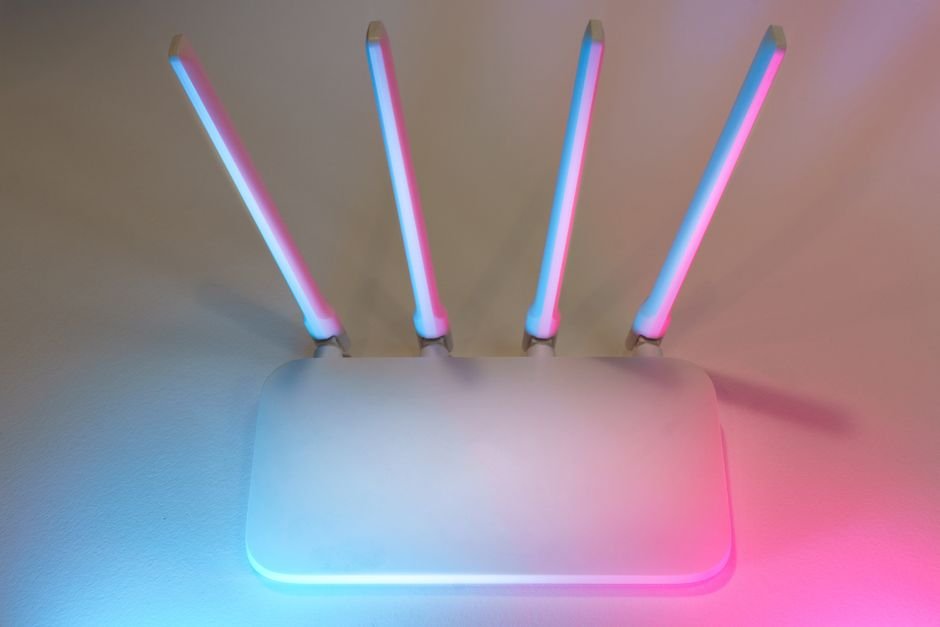
The very first thing to try. When a device saves a WiFi profile that has gone stale, it can connect to the router but fail to actually reach the internet. Go to your WiFi settings, tap the problematic network, choose “Forget” or “Delete saved network,” then re-enter the password and reconnect. This clears out bad cached IP data and often fixes the issue instantly — especially when other devices work fine on the same network.
2. Renew Your IP Address
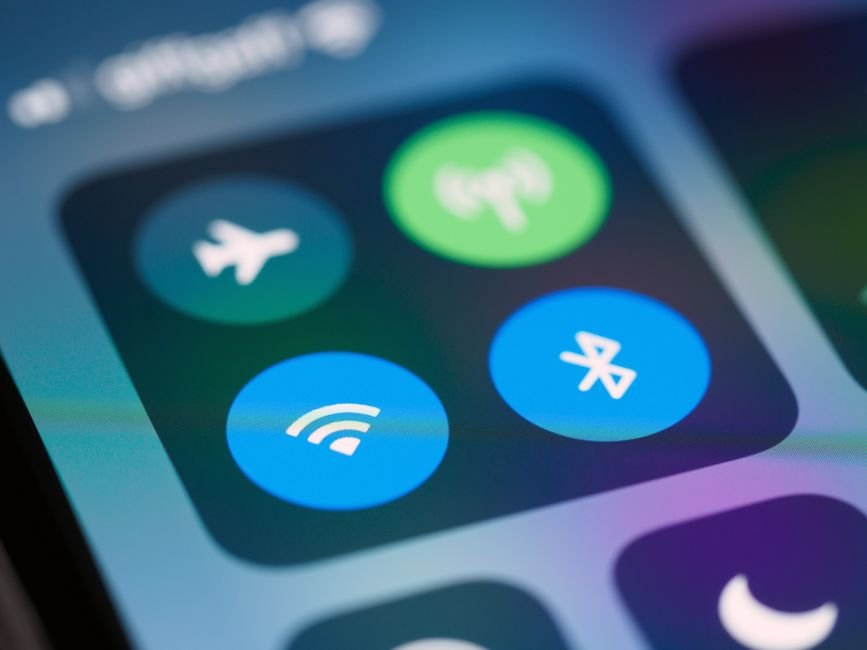
WiFi connected but no internet is a classic symptom of an IP address problem. If the device never got a valid address, it links to the router but can’t communicate. On a computer, open Command Prompt as administrator and run ipconfig /release to give back the old IP, then ipconfig /renew to request a fresh one — followed by ipconfig /flushdns for good measure. On a phone, toggle Airplane Mode on, wait a few seconds, then turn it off; the effect is the same — a new IP assignment.

3. Change Your DNS Server
If your IP looks fine but websites simply won’t load, DNS is the likely culprit. Your internet provider’s DNS server may be down or slow, so the router can’t translate domain names into addresses. In your network settings, switch DNS to manual and enter 8.8.8.8 as primary and 8.8.4.4 as secondary — Google’s public DNS. This often bypasses the provider’s DNS problem entirely. Phones allow DNS edits in the WiFi advanced settings too.

4. Power Cycle the Router (and Modem)
If every device in the house is affected, the router or the internet line is the problem. Unplug the router’s power cable, wait at least 30 seconds (longer is better — fully draining the capacitors matters), then plug it back in. Wait for all lights to stabilize. If the internet indicator light is red or dark, the line itself may be down — power cycle the modem too, and if lights still don’t return to normal, call your ISP for a line check.
5. Reset Network Settings
If nothing above works, your device’s network configuration may be corrupted. Reset it: on phones, go to Settings → General (or System) → Reset network settings; on computers, go to Settings → Network & Internet → Network reset. Note that this wipes all saved WiFi passwords, so you’ll need to re-enter them — but a clean slate often resolves stubborn connectivity problems that survive every other fix.
A Few Extra Checks
If the problem appears only on one specific app or site, it may be that service’s own issue rather than your network. And if it happens mainly during hot weather or in an overheated room, the router itself may be thermal-throttling — give it space to breathe and improve ventilation around it.
Final Thoughts
WiFi connected but no internet is almost never a broken device — it’s typically a stale network profile, a bad IP, a DNS failure, or a router that simply needs a restart. Start by forgetting the network and reconnecting, then renew your IP, switch DNS, power cycle the router, and reset network settings as a last resort. Bookmark this checklist for the next time your WiFi icon shows that frustrating warning, and share it with anyone stuck at the same “connected but nothing loads” screen.
Photo credits: Pexels contributors.