
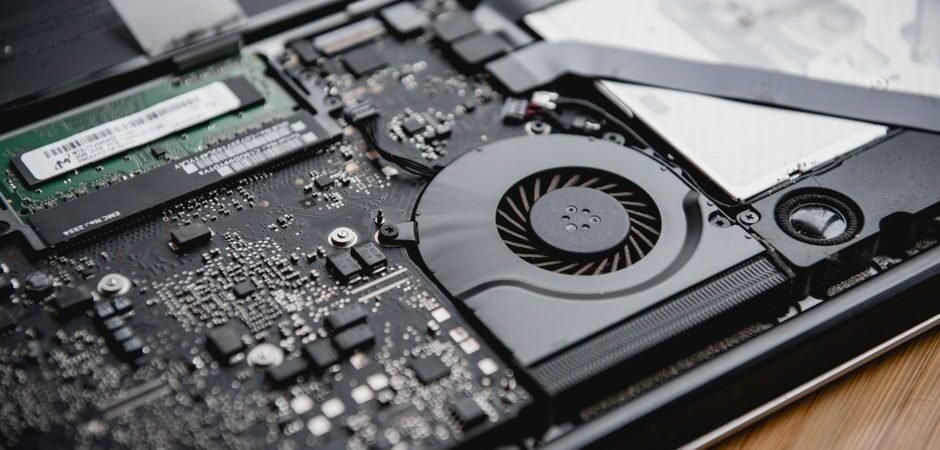
Your laptop sounds like a jet engine every summer. It gets hot, the fans scream, and out of nowhere everything slows down. That slowdown has a name — thermal throttling — and in the worst cases, heat can force a full shutdown.
The good news: most laptop overheating problems can be fixed without spending a dime. Here’s the full playbook, ordered from free-and-instant to worth-the-effort.
The short answer: fix placement and airflow first, close background programs next, switch to a balanced power mode, then clean dust from the vents. A cooling pad comes last — and only if your laptop has bottom intake holes.
Why Is My Laptop Overheating? The Usual Suspects
Before fixing anything, it helps to know the usual suspects:
- Bad environment. A laptop on a bed, couch cushion, or your lap blocks its bottom air vents, so heat has nowhere to go. Warm rooms make it worse.
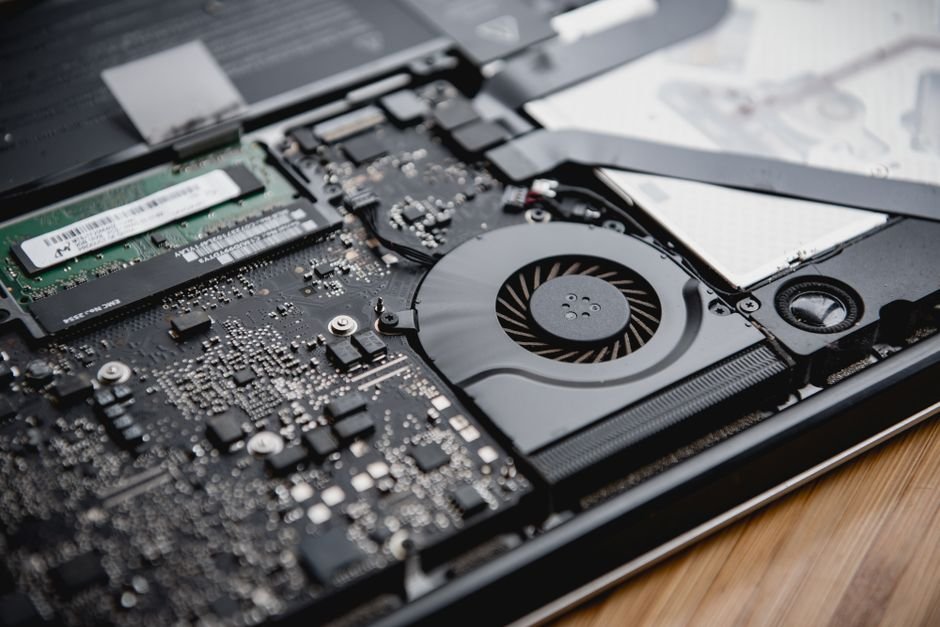
- Dust buildup. After two or three years, dust packs into the heatsink fins. Those gaps are barely a millimeter wide — a little fuzz is enough to choke airflow.
- Background processes. Dozens of Chrome tabs, a virus scan, or cloud syncing all push CPU usage (and temperatures) up.
- Power settings. Running in high-performance mode while plugged in generates extra heat around the clock.
How to Fix Laptop Overheating for Free: Start Here
1. Change Where the Laptop Sits
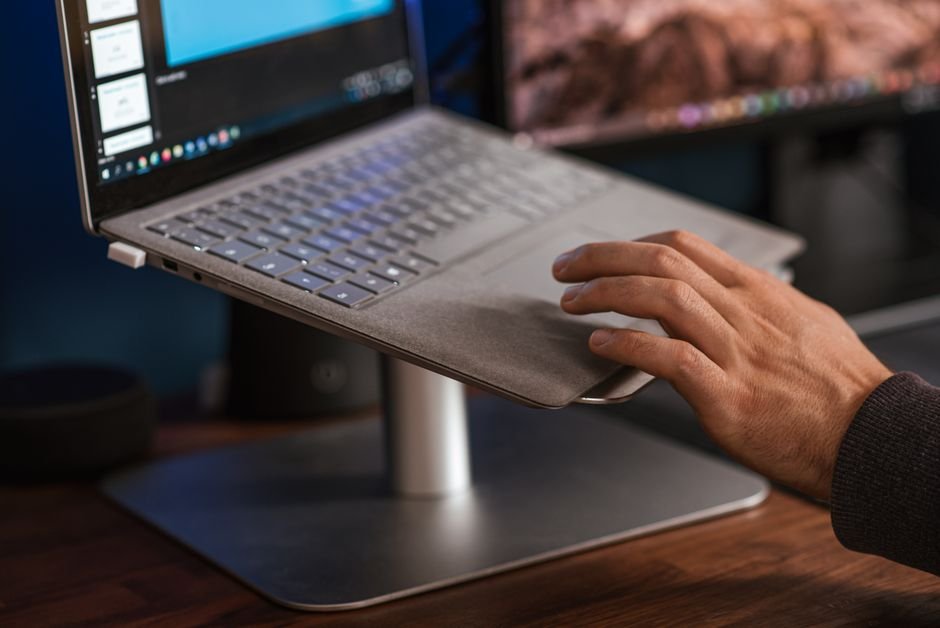
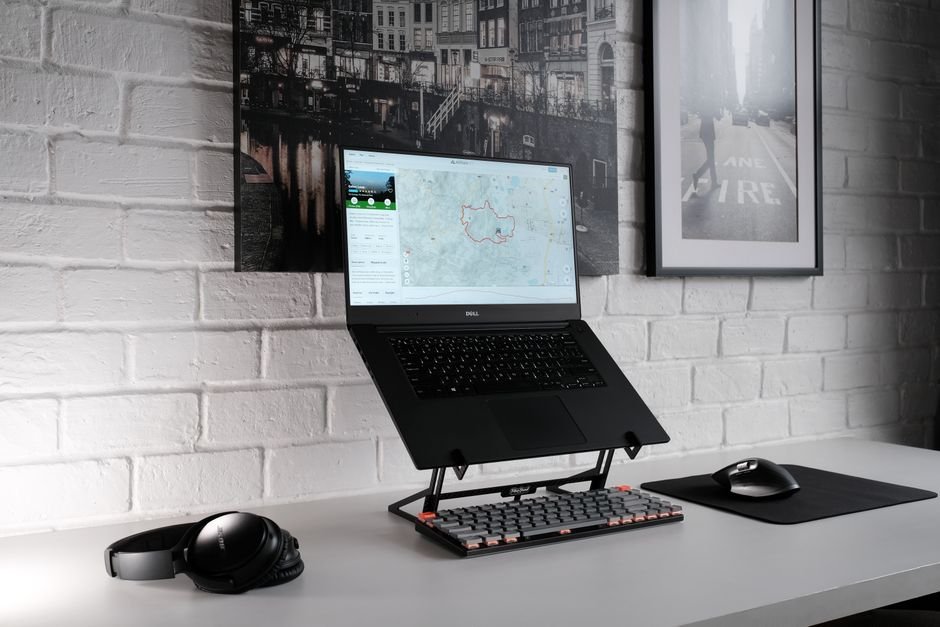
This is the simplest fix with the fastest payoff. Get it off the bed, cushion, or lap. Even on a desk, a laptop stand that lifts the base and creates an air gap noticeably improves circulation.
2. Kill Background Bloat
Open Task Manager (Ctrl + Shift + Esc) and sort by CPU usage. Closing unused tabs and idle programs alone often drops temperatures immediately. While you’re there, check the Startup tab and disable junk that launches at boot — less background load means less heat all day.
3. Dial Back Power Mode
In Windows, go to Settings → System → Power & battery and switch the power mode to Balanced or Best power efficiency. Reserve high-performance mode for when you actually need it.
4. Cool the Room
If you have air conditioning, using it is genuinely the most effective option — lower ambient temperature stabilizes the whole machine. If you’re using a fan instead, aim it to circulate room air rather than blasting directly into the vents; prolonged direct airflow pulls dust in faster.
Worth the Extra Effort
Clean Out the Dust
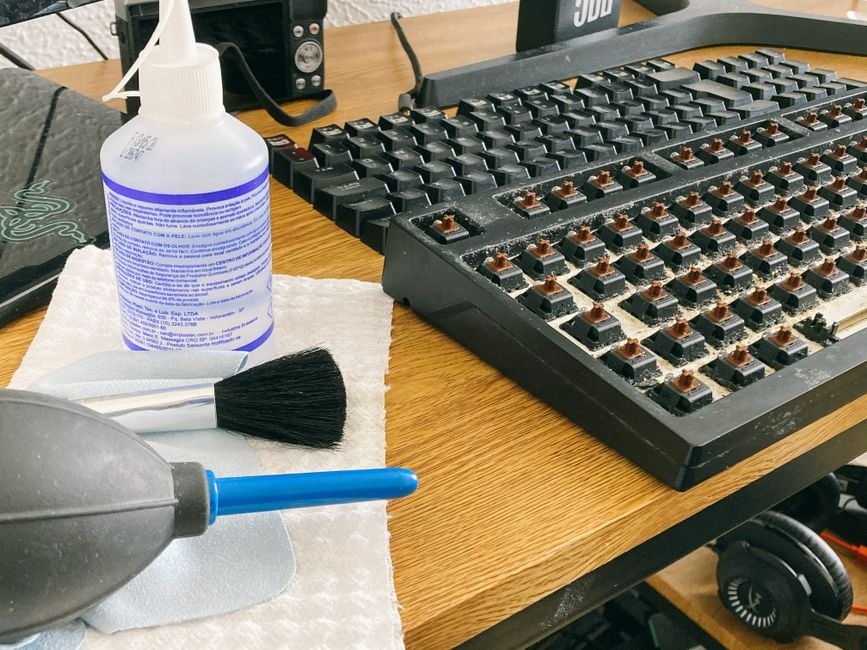
If your laptop is 2–3 years old and runs hot even at idle, internal cleaning is overdue. Short bursts of compressed air through the vents get you surprisingly far — with two cautions:
- Blow into the intake vents, not just the exhaust.
- Hold the fan blades still while spraying; spinning the fan hard with air can damage its bearings.
Avoid vacuuming the vents (static electricity risk). If opening the machine isn’t for you, a service center or repair shop will do it cheaply.
Add a Cooling Pad
A decent cooling pad typically lowers temperatures by about 5–15°C. One catch: check whether your laptop actually has intake holes on the bottom. If it doesn’t, a cooling pad mostly cools the plastic shell and does little for internal temps.
How to Check Your Laptop’s Temperature
Free tools like HWMonitor or HWiNFO show live CPU and GPU temperatures. Rough guide:
- Above 70°C: fans spin up fast — normal under load.
- Sustained 80°C+: throttling territory; performance drops.
- 80–90°C during gaming or video editing is tolerable, but hitting 80°C at idle or during light use suggests you need a dust cleaning — possibly new thermal paste.
Quick Reference: What to Try and What It Costs
| Method | Cost | Effect |
|---|---|---|
| Laptop stand / better placement | Free–cheap | Immediate |
| Close background programs | Free | Immediate |
| Adjust power mode | Free | Immediate |
| Room temperature control | Electricity | Immediate |
| Vent dust cleaning | Compressed air can | Medium–high |
| Cooling pad | ~$20–40 | Medium (model-dependent) |
Photo credits: Pexels contributors.
Most overheating comes down to environment and housekeeping, so try the free fixes before spending money. If this helped, bookmark Smart Fix Daily for more practical PC guides — and share it with the friend whose laptop is always cooking their desk.