
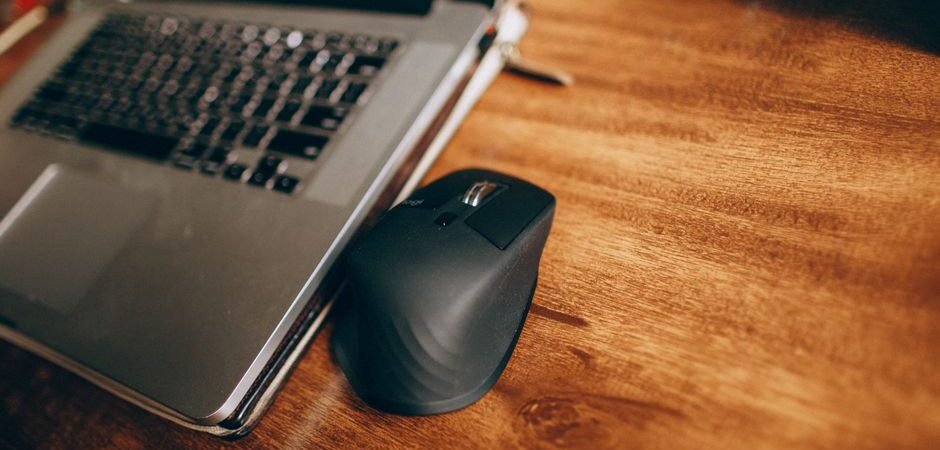
Few computer issues are as subtle yet infuriating as a wireless mouse that randomly stutters, freezes, or delays clicks. When your cursor stops responding for a second during detailed photo editing, intense gaming, or standard productivity work, it ruins your workflow instantly.
Most users assume a skipping mouse means the battery is dead or the hardware is failing. However, in over 80% of cases, the culprit isn’t a broken device—it’s environmental signal interference, poor USB receiver placement, or Windows 11 power-saving settings.
- Move the USB dongle: Plug it into a front USB port or USB extension cable instead of the back of the PC.
- Switch from USB 3.0 to USB 2.0: USB 3.0 ports emit 2.4GHz radio noise that interferes with wireless receivers.
- Disable USB Selective Suspend: Turn off Windows 11 power saving for USB controllers in Power Options.
Before throwing away your mouse or rushing to buy a replacement, work through this step-by-step troubleshooting guide to restore a smooth, lag-free connection.

Quick Connection Check: 2.4GHz Dongle vs. Bluetooth
Wireless mice connect using one of two primary methods: a dedicated 2.4GHz USB receiver (dongle) or built-in Bluetooth. Because each technology communicates differently with your PC, the root cause of stuttering varies depending on your connection type.
| Connection Type | Primary Cause of Stutter | Recommended Quick Fix |
|---|---|---|
| 2.4GHz USB Dongle | RF interference, distance, metal obstacles | Move receiver to front USB port or extension cable |
| Bluetooth | Driver glitches, Windows power suspend, pairing state | Unpair & re-pair device; disable USB selective suspend |
| Dual-Mode Mice | Profile switching lag, low battery voltage | Recharge battery fully; test both connection modes |
1. Check Battery Status and Low-Power Symptoms
Checking the battery seems obvious, but low battery levels don’t always cause the mouse to shut down immediately. Instead, low voltage often manifests as subtle performance drops:
- Micro-stutters and jittery cursor movement
- Delayed click response time
- Intermittent 1-to-2 second disconnects
- Dimming sensor LEDs or status indicators
If you are using rechargeable AA/AAA batteries or an integrated lithium battery, recharge or replace them first. Low-power Bluetooth mice are especially sensitive to voltage drops, leading to unstable signal transmission.
2. Reposition Your 2.4GHz USB Receiver
If you use a 2.4GHz wireless mouse, the location of your USB dongle plays a critical role in connection quality. Most desktop users plug the receiver into a rear motherboard USB port. If your PC case sits under a metal desk or behind walls, physical shielding weakens the radio signal dramatically.
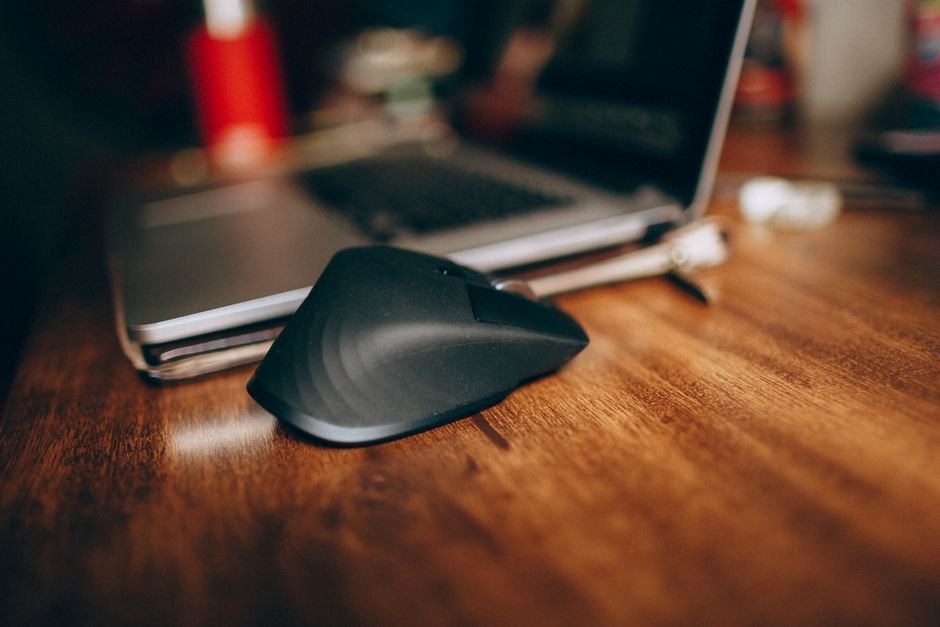
To eliminate physical obstacles and signal degradation:
- Plug into a front-panel USB port: Keep a direct line of sight between the mouse and receiver.
- Use a USB extension cable: Place the dongle on your desk within 1 to 2 feet of the mouse.
- Avoid cheap unpowered USB hubs: USB hubs can introduce data transfer delays or insufficient power delivery to connected dongles.
3. Reduce 2.4GHz Wireless Signal Interference (USB 3.0 & Wi-Fi)
The 2.4GHz radio frequency band is incredibly congested. Your Wi-Fi router, Bluetooth headphones, smart home devices, and wireless keyboards all compete for the exact same bandwidth.
Furthermore, Intel has documented that active USB 3.0 ports emit radio frequency noise in the 2.4GHz to 2.5GHz range. When a 2.4GHz mouse dongle is plugged directly adjacent to an active USB 3.0 flash drive or external hard drive, radiation interference causes dropped packets and cursor freezing.
Solution: Plug your 2.4GHz mouse dongle into a black USB 2.0 port rather than a blue USB 3.0 port if available. If your PC only has USB 3.0/3.1 ports, use a short USB extension cable to physically distance the receiver from active USB 3.0 ports and keep your Wi-Fi router at least 3 feet away.

4. Disable Windows 11 USB Power Saving (Selective Suspend)
Windows 11 includes an aggressive energy-saving feature known as USB Selective Suspend. This feature automatically powers down USB ports when it detects brief idle periods. When you move your mouse after a brief pause, it takes a second for the USB controller to wake up, resulting in noticeable cursor lag.
Here is how to disable USB Selective Suspend in Windows 11:
- Press
Win + R, typecontrol, and press Enter to open the Control Panel. - Navigate to Hardware and Sound > Power Options.
- Click Change plan settings next to your active power plan, then select Change advanced power settings.
- Expand USB settings, then expand USB selective suspend setting.
- Set the status to Disabled and click Apply.
For Bluetooth mouse users on Windows 11, unpairing and re-pairing the device clears corrupted cache profiles:
Go to Settings > Bluetooth & devices, select your mouse, click Remove device, and then re-pair it from scratch.
5. Reinstall Mouse Drivers and Update Firmware
Major Windows 11 updates can occasionally cause HID (Human Interface Device) driver conflicts or corrupt USB controller software. Resetting the device driver forces Windows to reconfigure default communication protocols:
- Right-click the Start button and open Device Manager.
- Expand the Mice and other pointing devices section.
- Right-click your mouse and select Uninstall device.
- Restart your computer. Windows will automatically detect the mouse and reinstall a clean default driver upon boot.
Additionally, check proprietary companion software like Logitech G HUB, Razer Synapse, or SteelSeries GG for available firmware updates. Manufacturers regularly release patches to fix connection stability issues.

Buyer’s Checklist: When Is It Time for a New Mouse?
If you have checked the battery, cleared signal interference, updated drivers, and disabled USB power saving, but your mouse still freezes on multiple computers, the hardware sensor or switch mechanism may be failing.
When shopping for a replacement, prioritize stability criteria over flashy features:
- Office & Everyday Use: Look for dual connectivity (2.4GHz + Bluetooth), silent click switches, and an ergonomic grip designed for long working hours.
- Gaming Use: Prioritize high polling rates (1000Hz or higher), ultra-low latency 2.4GHz wireless transmission, and lightweight construction.
Summary Checklist
When your wireless mouse starts stuttering, follow this quick diagnostic sequence:
- Replace or fully recharge the battery.
- Move the 2.4GHz USB receiver closer using a front port or USB 2.0 extension cable.
- Keep dongles away from USB 3.0 ports and Wi-Fi routers.
- Disable Windows 11 USB Selective Suspend in Power Options.
- Reinstall mouse drivers in Device Manager or re-pair Bluetooth.
Found this guide helpful? Bookmark SmartFixDaily and share this guide with anyone struggling with skipping wireless mice!