

You see “USB-C” stamped on nearly every new laptop, phone, and tablet. Then a friend tells you their new machine has “USB4.” Same port, same cable — so what’s actually different?
The short answer: USB-C describes the shape of the connector. USB4 describes the protocol running through it. They are two different things that often coexist on the same plug, and confusing them leads to real problems — buying the wrong cable, paying for bandwidth you never use, or worse, bottlenecking a $2,000 laptop with a $3 cord.
USB-C vs USB4: What’s the Difference, Really?
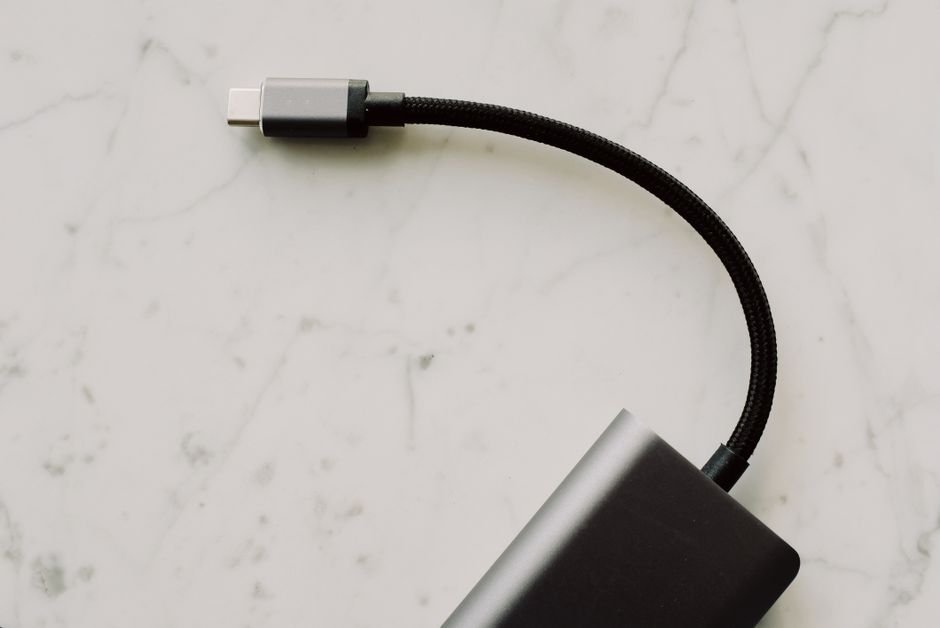
USB-C is a physical connector — a small, reversible plug that replaced the older rectangular USB-A. It defines how the cable looks, nothing more.
USB4 is a data and display protocol — the latest evolution of the Universal Serial Bus standard. It defines how data moves through the cable.
USB4 cables almost always use the USB-C connector. But a USB-C cable does not automatically give you USB4 speeds. That’s where most people get tripped up.
Speed Comparison: Where USB4 Leaves USB-C Behind
This is the single biggest practical difference. The numbers tell the story:
| Standard | Max Data Rate | Typical Use |
|---|---|---|
| USB 2.0 (over USB-C) | 480 Mbps | Keyboards, mice, basic peripherals |
| USB 3.2 Gen 2 (over USB-C) | 10 Gbps | External SSDs, mid-range transfers |
| USB 3.2 Gen 2×2 (over USB-C) | 20 Gbps | Fast external SSDs, mid-range USB-C cables |
| USB4 Gen 2 (over USB-C) | 20 Gbps | Mid-tier USB4 cables, mid-range displays |
| USB4 Gen 3 (over USB-C) | 40 Gbps | High-res displays, large file transfers, eGPU |
| Thunderbolt 4 (over USB-C) | 40 Gbps | Pro docks, multi-display, PCIe tunneling |
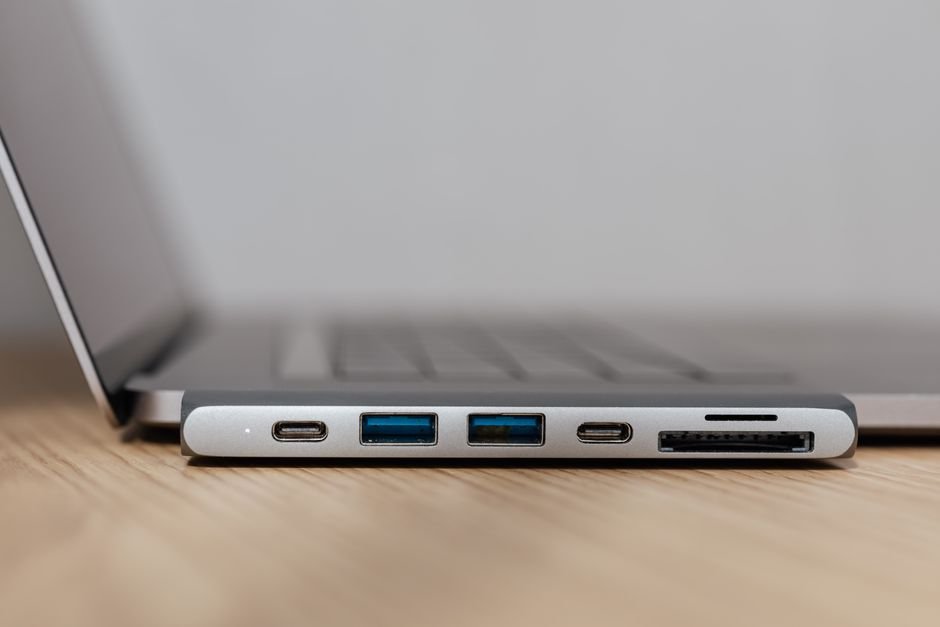
USB4’s headline feature is 40 Gbps — supported natively on USB4 Gen 3 hosts including Apple Silicon Macs and most Windows laptops from the last few years. That’s roughly 80× faster than USB 2.0 and enough to drive an 8K display or transfer a 50 GB file in well under 30 seconds.
Why USB4 Cables Beat the Old USB-A Standard
Three practical wins over the legacy rectangular plug:
- Reversible: No more fumbling to find the correct orientation — flip it either way and it fits.
- 40 Gbps headroom: When paired with a USB4 host, large files and high-bandwidth streams move without stutter.
- 100W power delivery: A single USB-C/USB4 cable can charge a laptop — no separate barrel jack needed on most modern notebooks.
Plain USB-A cables typically topped out around 5 Gbps (USB 3.0) — though 10 Gbps USB-A cables do exist, the connector shape itself is the bottleneck for power delivery and reversibility.

Power Delivery: Charging Over USB4 vs USB-C
For charging, the two are essentially equivalent. Both support USB Power Delivery (USB-PD) up to 100W (240W with the newer Extended Power Range spec).
Where they diverge sharply is data + display:
- USB-C charging = fine for phones, tablets, most laptops
- USB4 charging + data = required if you also want to drive an external GPU, 4K+ display, or fast external NVMe
If your charger is your only concern, you don’t need USB4 specifically. If you want one cable to do everything, USB4 is the path.
Does Every “USB4” Cable Actually Hit 40 Gbps?
No — and this is the trap. Cable makers are free to label a cable “USB4” even if it tops out at 20 Gbps, or even 10 Gbps. The certification tier matters.
Look for cables certified by the USB Implementers Forum (USB-IF). A certified USB4 cable will print the speed rating on the connector or packaging. Anything unlabeled is a gamble.
Should You Buy a USB4 Device?
Yes, if any of these apply to you:
- You regularly move large files (video projects, RAW photos, game libraries)
- You stream or edit high-resolution video and need zero stutter
- You want to drive a 4K/8K external display from a laptop
- You want to connect an external GPU enclosure
If you only browse the web, plug in a mouse, and charge your phone, USB-C is plenty.
How to Check If Your Device Supports USB4
Three ways, fastest first:
- Check the spec sheet: Search your exact model number + “USB4 support” on the manufacturer’s site.
- Look at the port symbol: Some manufacturers print a small “USB4” or “40Gbps” logo next to the port.
- Check Device Manager (Windows): Open it, expand “Universal Serial Bus controllers,” and look for an entry labeled “USB4.”
If nothing mentions USB4, the device almost certainly doesn’t support it.
Quick Summary
- USB-C = the connector shape (reversible, small)
- USB4 = the protocol (up to 40 Gbps, 100W charging, display + data + power)
- USB-C does NOT mean USB4 — the port can run USB 2.0, 3.2, USB4, or Thunderbolt depending on the host
- For full 40 Gbps speed, buy a USB-IF certified cable
Frequently Asked Questions
Can I use a USB-C cable with a USB4 device?
Yes — it’ll work, but you’ll be limited to the cable’s own rating. A USB 2.0 USB-C cable in a USB4 port still runs at 480 Mbps.
Is USB4 the same as Thunderbolt 4?
Not exactly. Thunderbolt 4 guarantees 40 Gbps, PCIe tunneling, and stricter certification. USB4 is more flexible — it can hit 40 Gbps, but doesn’t have to. Thunderbolt 4 devices always support USB4; the reverse isn’t true.
Will USB4 work with my old USB-A peripherals?
Yes, with a USB-C to USB-A adapter or cable. Speeds will fall back to whatever the older device supports.
Do I need USB4 for fast charging?
No. Charging speed is governed by USB Power Delivery, which works over both USB-C and USB4.
The next time someone tells you their laptop has “USB4,” you’ll know exactly what that means — and exactly which cable to reach for.
Found this useful? Bookmark it before your next laptop or cable buy, and share it with the friend who keeps asking why their new port is “different.”
Photo credits: Pexels contributors.