

A factory reset feels thorough. You tap “Erase all content,” watch the progress bar fill, and assume the next owner sees a clean slate. In reality, a plain reset only destroys the encryption key, not the underlying files. Forensic recovery tools can still pull fragments of photos, messages, and account credentials from that “erased” storage.
If you’re selling, trading in, or recycling an Android phone or iPhone, you need a wipe that survives someone trying hard to get your data back. This guide walks through the four-step method that actually works: unlink your accounts, encrypt, overwrite, then reset again.

Why a Factory Reset Alone Won’t Protect You
So why bother with anything beyond the reset button? Because a plain reset leaves a forensic door open. Before we close it, here is the part most people skip — and the one that bricks phones when it’s done wrong.
Step 1: How to Unlink Google and Apple Accounts Before a Factory Reset
Skipping this step is how phones end up bricked on the other side of a sale. Modern Android and iOS devices tie the hardware to a Google or Apple ID — a feature called Factory Reset Protection (FRP) on Android and Activation Lock on iPhone. If the accounts aren’t removed first, the new owner is stuck at a login screen they can’t pass.
Do this on every phone you intend to wipe:
On Android (Samsung Galaxy as the example)
- Open Settings → Accounts and backup → Manage accounts.
- Tap each Google and Samsung account, then choose Remove account.
- Confirm with your PIN, pattern, or password.
On iPhone
- Open Settings → [Your Name] at the top of the list.
- Scroll down and tap Sign Out.
- Turn off Find My iPhone when prompted and enter your Apple ID password to fully deactivate Activation Lock.
Step 2: Why a Factory Reset Isn’t Enough to Wipe Phone Data
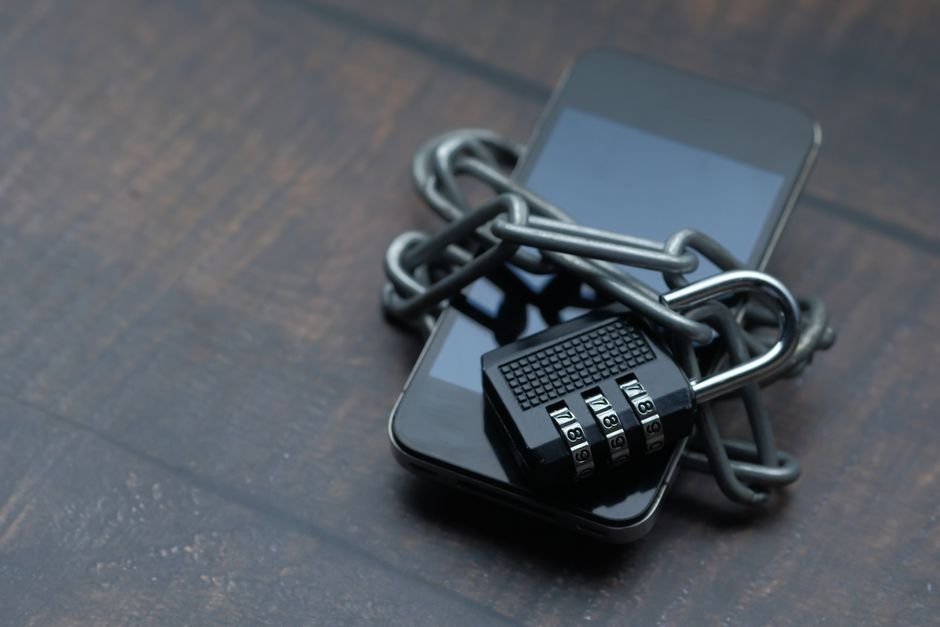
Every modern phone (Android 10 and later, iOS 8 and later) uses File-Based Encryption (FBE). Your data isn’t stored as readable files; it’s stored as encrypted blobs that need a device-specific key to decode. A factory reset deletes that key — which is why a casual thief or a casual buyer can’t read your data, but it doesn’t physically overwrite the storage blocks themselves.
Specialist forensic tools can sometimes recover fragments from older OS versions, misconfigured devices, or storage media that was never encrypted in the first place. The fix is to overwrite those blocks before the final reset.
Step 3: The Three-Pass Method to Make Phone Data Unrecoverable
Pass A — First Factory Reset on Android and iPhone
On Samsung Galaxy: Settings → General management → Reset → Factory data reset.
On iPhone: Settings → General → Transfer or Reset iPhone → Erase All Content and Settings.
Follow the prompts and let the phone reboot to the welcome screen. Do not sign in to any account.
Pass B — Overwrite Free Space So Data Can’t Be Recovered
Skip the initial setup until you reach the home screen, then fill the storage with meaningless files. Two reliable methods:
- Open the Camera app, switch to 4K video, and record continuously until the phone warns you’re out of space.
- Or download a few large open-source files (Linux ISO images work well) over Wi-Fi until the storage is full.
- Either approach physically overwrites the free blocks where the old encrypted data still lived.
Pass C — Second and Final Factory Reset
Once the phone is full of junk, repeat Pass A. This destroys the encryption key for the junk files too, leaving the device in a state that no mainstream recovery tool can undo.
Step 4: Pre-Sale Checklist Before You Sell or Recycle Your Phone
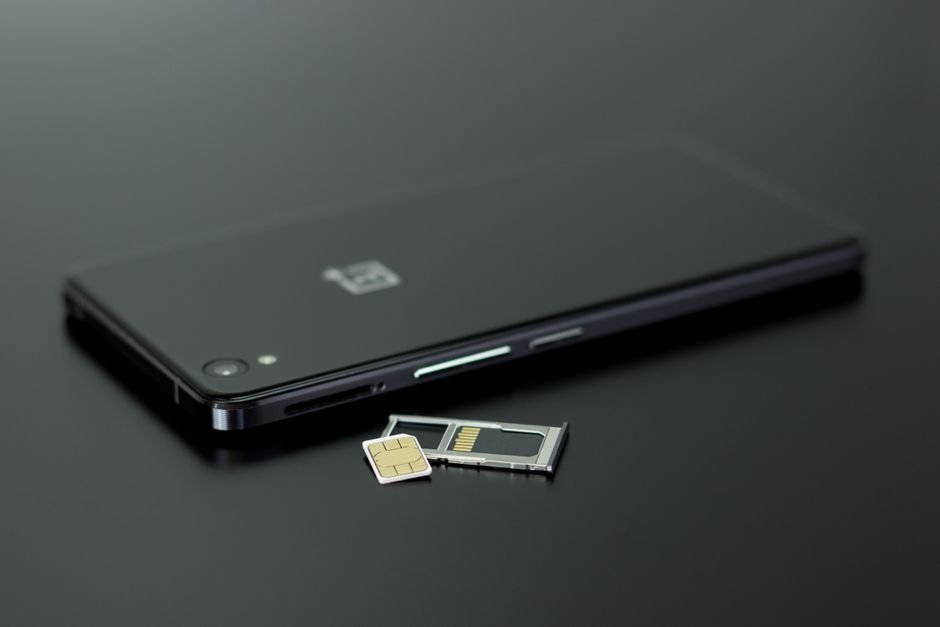
- Remove the SIM card and any microSD card. A factory reset only touches internal storage — SIM and SD cards keep everything written to them.
- Revoke the device from app-level logins. Open your bank app, Google account, Apple ID, and any messaging apps (KakaoTalk, WhatsApp, Telegram) and remove this phone from the trusted-devices list. Otherwise the next sign-in will trigger security prompts tied to the old device.
- Unpair Bluetooth accessories. Forget the phone from your smartwatch, earbuds, and car infotainment system so they pair cleanly with the next device.
- Verify the wipe. After the second reset, set the phone up briefly and confirm Photos, Messages, Contacts, and any banking apps show zero data.

Frequently Asked Questions About Wiping Phone Data
Is a factory reset enough before selling my phone?
For casual buyers, yes. For anyone with access to forensic tools, no — follow the three-pass method above.
How long does the full wipe take?
Around 60–90 minutes total: 20–30 minutes per reset and 30–60 minutes for the overwrite step depending on your storage size.
Does this work on both Android and iPhone?
Yes. The menu paths differ, but the principle — unlink, reset, overwrite, reset — is identical.
What about encrypted phones — are they already safe?
Modern phones are encrypted by default, which blocks casual access. The overwrite step adds protection against recovery specialists and against any residual unencrypted metadata.
Bottom Line
Treating the wipe as seriously as the rest of your phone use is the difference between a clean handoff and a privacy leak years down the road. The four steps — unlink accounts, reset, overwrite, reset again — take under two hours and close off every realistic recovery path. If you’re selling the phone to a stranger, don’t skip the overwrite; that single pass is what separates “reset” from “erased.”
Bookmark this guide for the next time you upgrade — you’ll want it again when this phone becomes someone else’s problem.