
Why your PC, phone, and account all hold a piece of the link
You deleted “Phone Link” from your PC, so why does the notification pop back up a few days later? The app looks gone, but the phone icon is still beside your Start menu, and your handset still says “Connected to PC.”
That’s normal – Phone Link isn’t one app. It’s a feature spread across three places: your PC, your phone, and your Microsoft account. Think of it as a bridge between the two devices. Blocking the PC-side entrance doesn’t make the bridge disappear; the phone-side entrance is still open, and the account “bridge office” keeps a registration record.
Why “I deleted it but it reconnects” happens
First, let’s clear up the misunderstanding. Most people think removing the device on the PC is the end of it. In reality the connection info is stored in three separate places:
| Location | What’s stored there | If you clear only this |
|---|---|---|
| PC (Phone Link app + Windows settings) | The list of devices paired with this PC | Phone can reconnect by re-logging in |
| Smartphone (the “Linked to Windows” app) | Your signed-in Microsoft account | PC keeps prompting to pair again |
| Microsoft account (account.microsoft.com) | The device list registered to your account | A ghost device stays on the list forever |
Microsoft’s own docs say the same thing: even after you remove a device on the PC, you may still need to manually remove it from the phone’s Linked to Windows app and from your PC settings. So to fully cut the link you have to touch all three places. But depending on your goal, cleaning up just one of them is often enough.
Which path do you actually need?
Your goal decides where you need to act. Pick your situation from the table:
| What you want | What to do | Difficulty / Reversible |
|---|---|---|
| 1. Just hide the alerts & phone screen | Turn off Start-menu display + disable startup | Very easy / Instant |
| 2. Disconnect one specific device | Remove device on PC (Step 1) | Easy / Re-pair |
| 3. Fully separate phone and PC | Step 1 + phone logout (Step 2) | Moderate / Re-login |
| 4. Wipe the account record too | All of steps 1-3 | Moderate / Start over |
| 5. Remove or hide the app itself | Step 4 (uninstall or hide) | Caution / Reinstall from Store |
For most people, option 1 or 2 is enough. If you’ve changed phones or plan to sell or give yours away, go through steps 3-4.
Note: menu names vary by Windows and One UI version. “Device” may show as “Connected devices,” and so on – look for the closest match.
Step 1 – Disconnect the device on your PC
This blocks the PC-side entrance. Check both spots:
Remove it from the Phone Link app
- Open Phone Link from the Start menu
- Top-right Settings (gear) → Devices
- Next to the device, click the three-dot menu (More options) → Remove
- Confirm the prompt and finalize removal
This stops calls, texts, and notifications from working on that device.Also check Windows Settings – the device can linger here even after you delete it from the app:
- Settings (Windows key + I) → Bluetooth & devices → Mobile devices → Manage devices
- If the device shows up, remove it
This also cuts off File Explorer phone-photo access and the linked-camera feature.
Heads-up: on some Windows 11 builds the Remove button is missing entirely. If you don’t see it, check Windows Update first; if it’s still gone, handle it through steps 2-3.
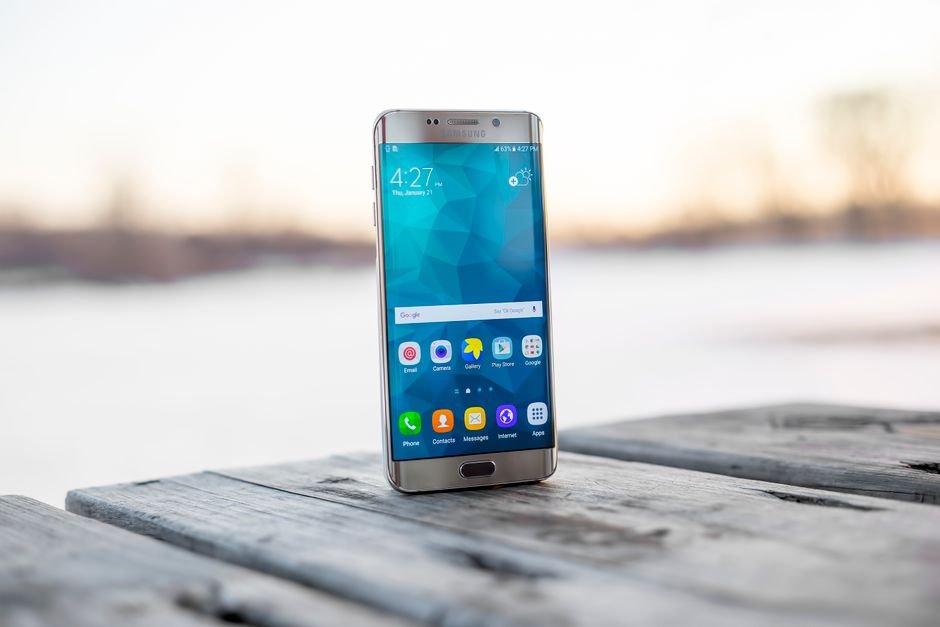
Step 2 – Turn off the phone side (Galaxy / Android / iPhone)
If you only clean the PC, your phone keeps signaling “ready to connect.” Close the phone-side entrance too.
Galaxy and other Android phones with Linked to Windows built in:
- Settings → Connected devices (may be “Connections” or “Useful features”) → Linked to Windows
- Or swipe down from the top and long-press “Linked to Windows” in the quick panel
- Select the signed-in Microsoft account → Log out
Using a separately installed app? Open it → top-right Settings → Account → Log out. On iPhone it’s App → top-left menu → Settings → Account → Log out.
Also clear Bluetooth: if the two devices are paired, remove the phone under PC Settings → Bluetooth & devices, and on the phone’s Bluetooth settings remove the PC (iPhone: “Forget This Device”). Skip this and you’ll get a “reconnect?” prompt whenever they’re near each other.
Only want the alerts to stop? You can stop after Step 1 or 2 – bookmark this guide now so you can find it the next time Phone Link creeps back, and share it with anyone fighting the same ghost notification.
Step 3 – Remove the device record from your Microsoft account
This is the “bridge office.” If you’ve already disposed of the phone, or a dead phone is haunting your account device list, you need this step.
- Go to account.microsoft.com/devices and sign in
- Find the device and choose to remove / unlink it
Microsoft notes this is separate account-record cleanup; the Phone Link app itself is built into Windows, so Microsoft doesn’t support a normal uninstall of the app.

Step 4 – Hide or remove the app itself (optional)
You don’t have to do everything. If your only annoyance is the alerts, one toggle finishes it in a minute: Settings → Personalization → Start → turn off “Show mobile devices.” To also stop it launching at boot, open Task Manager → Startup and disable it. Because Phone Link is integrated into Windows, Microsoft doesn’t offer a standard uninstall – your realistic options are hiding it from Start and stopping it from starting up.
The quick checklist
- Phone Link app → Settings → Devices → Remove device
- Settings → Bluetooth & devices → Mobile devices → Manage devices → Remove
- Phone: Settings → Linked to Windows → Account → Log out
- Unpair Bluetooth on both sides
- account.microsoft.com/devices → unlink
- Settings → Personalization → Start → turn off “Show mobile devices”
- (Optional) Task Manager → Startup → disable
One thing to do before you sell or give away your phone
If you’re about to change phones or sell yours secondhand, do the phone-side Linked to Windows logout today – before you hand it over. Once the device is gone, you can’t do it from the other side.

Wrapping up
Watch it for a few days after cleaning up. If the notification returns, it’s a sign one of the three places is still uncleaned – just run through the checklist again. Bookmark this guide so you can find it the next time Phone Link creeps back, and share it with anyone fighting the same ghost notification.
Menu paths reflect Microsoft’s official documentation as of August 2026. Names and locations may change with Windows and One UI updates.