
If your iPhone screen recording isn’t working — the button is missing, there’s no sound, the screen comes out black, or the clip won’t save — it usually isn’t a hardware fault. In almost every case, one setting is quietly blocking the feature.
This guide walks through each symptom and the exact fix, in order. Most take under a minute and none require a restart.
iPhone Screen Recording Button Missing? The Screen Time Fix
If you can’t even find “Screen Recording” in the Control Center edit list, there’s one culprit: Screen Time.
- Open Settings → Screen Time.
- Tap Content & Privacy Restrictions.
- Tap Content Restrictions → scroll down to Screen Recording.
- Set it to Allow.
Takeaway: Screen Time is blocking it — flip Screen Recording to “Allow” and the button reappears instantly. You may never have turned this on yourself; it often lingers from an old parental-control setting or a device restore.
Add the Screen Recording Button to Control Center
Once Screen Time is unlocked, you still need to put the button where you can reach it.
- Older iOS: Settings → Control Center → under “More Controls,” tap the green + next to Screen Recording.
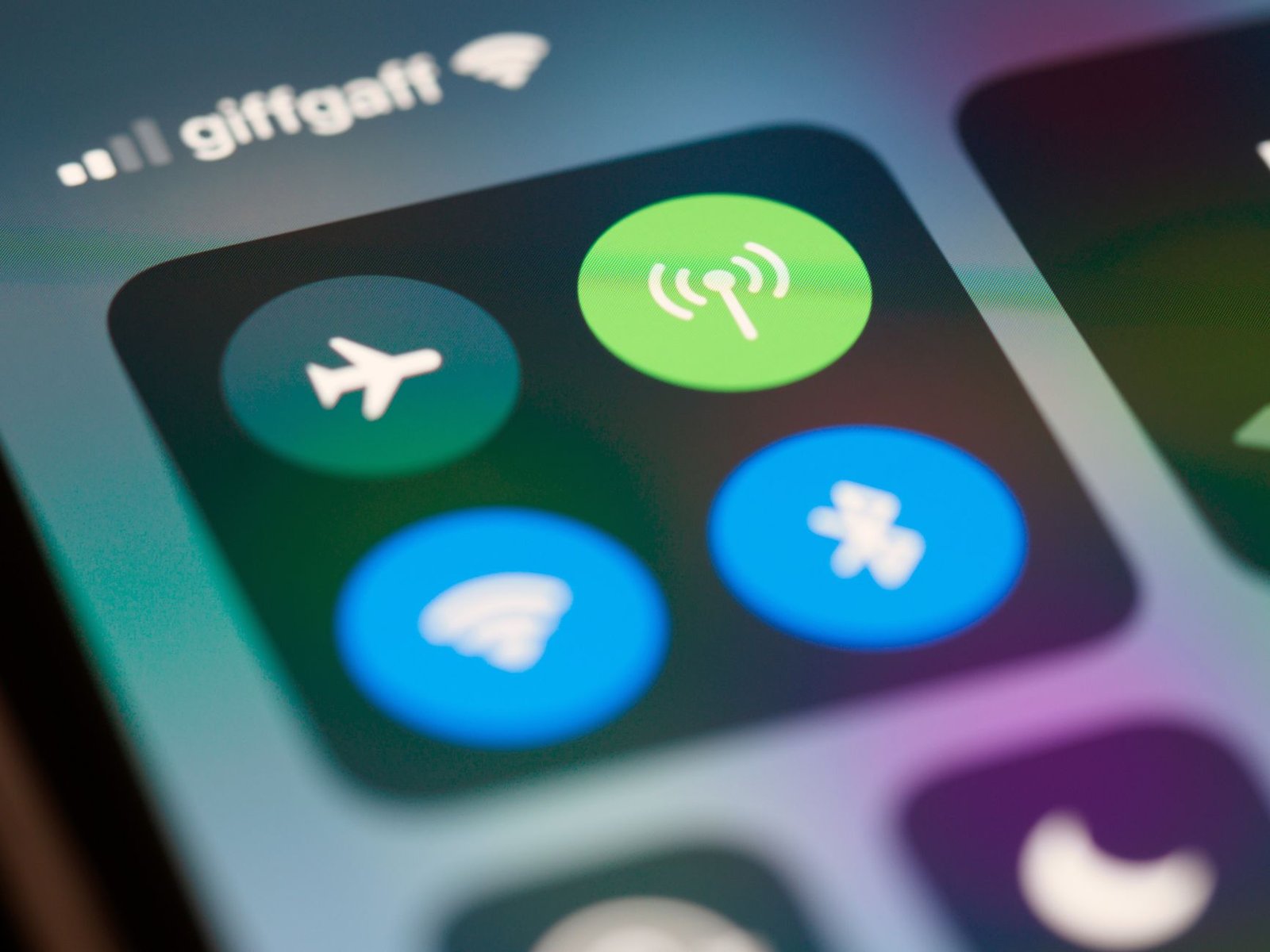
- Newer iOS: swipe down from the top-right to open Control Center, then long-press an empty area to enter edit mode. Tap the + at the top-left and add the control (search “screen recording” to jump straight to it).
How to Start and Stop an iPhone Screen Recording
- Open Control Center and tap the round record button once — it counts down 3 seconds, then starts.
- While recording, the status bar at the top turns red. That’s your “it’s on” signal.
- To stop, tap the red area and choose Stop, or reopen Control Center and tap the button again.
- The clip saves to the Photos app — at the end of Recents, not a separate folder.
Screen Recording Audio Crackly or Staticky? Turn the Mic Off
This is the second most common complaint: you play back the recording and the sound is distorted and buzzy.
The cause is the microphone being on. When mic recording is enabled, your iPhone captures its own speaker output through the mic, and that overlaps with the original audio to create the tearing sound.
Takeaway: Long-press the record button → tap the mic icon → set it to Off. App sound still records with the mic off — that’s the part most people miss. Only turn the mic on when you need to capture your own voice, and even then, lower the speaker volume or use earphones to reduce overlap.
iPhone Screen Recording Has No Sound? Check the Silent Switch & Mic
The opposite problem — a silent video. Two likely reasons:
- The Ring/Silent switch on the side is set to silent. If the app makes no sound, there’s nothing to record — flip it to ring.
- You needed your voice, but the microphone was off (see step above). Turn it on and re-record.
Also note: streaming apps like Netflix, Disney+, and similar have copyright protection that blocks screen recording entirely. You’ll get a black screen or a clip with the audio stripped. That’s the app blocking it, not a setting you can change.
Recording Won’t Save or Stops? Free Up iPhone Storage
You tap the button, it counts to 3, and nothing happens — or you get a “save failed” message. This is almost always storage.
- Screen recording eats tens of megabytes per minute, so a full device fails immediately.
- Check Settings → General → iPhone Storage and keep at least 1–2 GB free.
- An incoming call auto-stops any recording — that’s normal, not a fault.
- Low Power Mode can cause mid-recording drops; for long captures, turn it off and keep the phone charging.
Is There a Time Limit on iPhone Screen Recording?
There’s no fixed limit — it runs as long as storage holds out. But longer clips get huge and become a pain to share. If you plan to send it over a chat app, record in shorter chunks; if you already recorded long, open it in Photos, tap Edit, and drag the ends of the timeline to trim it down.
Quick Reference: Symptom → Cause → Fix
| Symptom | Most likely cause | Fix |
|---|---|---|
| Record button missing from Control Center | Screen Time content restriction | Settings → Screen Time → Content & Privacy Restrictions → Content Restrictions → Screen Recording → Allow |
| Button is greyed out / won’t press | Same Screen Time block | Same as above |
| Timer counts, nothing records | Not enough free storage | Free up 1–2 GB in Settings → General → iPhone Storage |
| Screen records black | Copyright-protected app (Netflix, Disney+, etc.) | Can’t be fixed — the app blocks it |
| Audio is crackly / static | Microphone is on during recording | Long-press record button → tap mic icon to turn it off |
| No audio at all | Silent switch on, or mic off | Flip Ring/Silent switch; enable mic only if you need your voice |
| Stops mid-way / won’t save | Storage full, Low Power Mode, or incoming call | Free storage, disable Low Power Mode, keep phone charging |
Frequently Asked Questions
Is there a time limit on iPhone screen recording?
No. There’s no fixed limit — it records as long as storage allows. Longer clips just get larger and harder to share.
Can you record iPhone screen with internal audio?
When the microphone is off, app and system sound record cleanly through the device itself. The mic only adds your own voice; leaving it on causes the crackly overlap described above.
Why is my screen recording black on Netflix?
Streaming apps like Netflix and Disney+ use copyright protection that blocks screen capture. You’ll get a black screen or silent clip — that’s the app, not a setting you can change.
Why does my iPhone screen recording have no sound?
Either the side Ring/Silent switch is set to silent, or the microphone was off when you needed your voice. Flip the switch to ring, or enable the mic before recording.
The Bottom Line
For most issues, three moves solve it: if the button is missing, allow Screen Recording in Screen Time; if audio is crackly, long-press the record button and turn the mic off; if it won’t save, free up storage. Bookmark this page or share it with a friend so the next recording failure takes 30 seconds instead of 30 minutes.