
Quick version: Make a custom iPhone ringtone in under a minute — free, no computer, no app. Here’s what you need, step by step.
Hear that familiar marimba chime in a crowded room and suddenly everyone’s patting their pockets? If you’ve been meaning to swap the iPhone’s stock ringtone for something that’s actually yours, you’re not alone. The good news: you can turn any song, meme sound, or even your own voice recording into a ringtone for free — straight from the iPhone. No Mac, no Windows PC, no paid app, no GarageBand export. Just your phone and a short video clip.
What You’ll Need
- An iPhone (the steps below use the built-in Files app and Share sheet)
- A short video clip you want as a ringtone — a favorite song, a funny sound, or any clip saved to Photos
Use audio you own or a royalty-free clip; recording copyrighted music from YouTube can breach that platform’s terms, so stick to sounds you have the right to use.
Step 1 — Capture the Sound (or Skip Ahead)
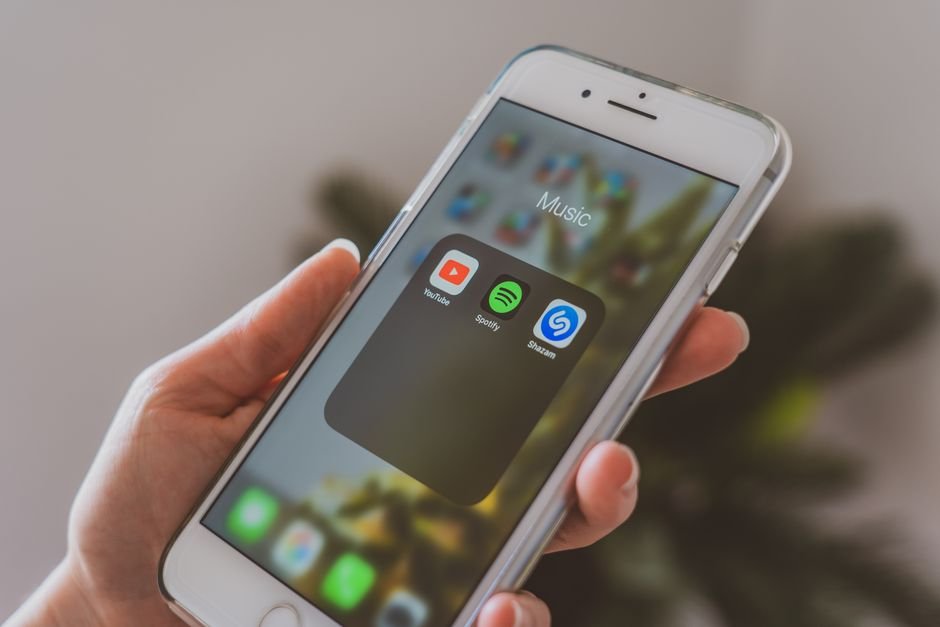
Found the perfect song or sound? Use the iPhone’s built-in Screen Recording to capture it:
- Open Control Center and tap the Screen Recording button.
- Play the video you want to capture.
- When you’re done, tap the red indicator and stop — the clip lands in your Photos app.
Already have a video saved? Skip this and move on.
Step 2 — Trim and Send to Files
Open the clip in Photos and trim it to the part you want as your ringtone. Then:
- Tap Share, then choose Save to Files.
- Pick a folder and save it.
(Don’t worry if the folder name looks different from someone else’s screenshot — that’s just your own Files layout.)
Step 3 — The Trick: Rename to .m4a
Here’s the part most people miss. The iPhone treats a renamed audio file as a usable ringtone, but the file has to be in the right format.
- Open the Files app and find your saved clip.
- Tap the file name, then choose Rename.
- Delete the
.movor.mp4extension and type.m4ainstead (for example,mysong.m4a). - The video is now seen by the phone as a music file.
Step 4 — Set It as Your Ringtone
Long-press the renamed file and tap Share, then choose Use as Ringtone. On current iOS this option appears right in the Share sheet; if you don’t see it, tap More (the ellipsis menu) to reveal it. On older iOS versions where it still won’t appear, use the Shortcuts app or GarageBand to import the .m4a instead. That’s it — your custom sound is now live, and you can use the same file as an alarm tone too.
iPhone Ringtone FAQ
Does this work on iPad?
Yes — the same Files-app rename trick works on iPadOS to set a custom alert or ringtone sound.
Why won’t my .m4a show up as a ringtone?
Make sure the extension is exactly .m4a and the clip is short (under about 30 seconds). If the Share sheet still hides Use as Ringtone, tap More, or fall back to the Shortcuts app.
Is it really free?
Yes. No paid app, no computer, and no iTunes needed — just your iPhone and a clip you own or a royalty-free sound.
Can I use it as an alarm too?
Yes. The same file can be picked as an alarm tone in the Clock app.
A Few Quick Tips
- Keep it short. Ringtones work best around 20–30 seconds; trim the clip before renaming.
- The rename step is mandatory. An
.movor.mp4won’t show up as a ringtone option. - Want a different vibe later? Just repeat the steps with another clip.
- This works for alarm sounds too — not just incoming calls.
It looks fiddly the first time, but once you’ve done it, it takes under a minute. Give your iPhone a ringtone that’s actually yours — then bookmark this guide so you can whip up a new one whenever a song catches your ear. Found a sound that works great? Share this with a friend who’s still stuck on the default chime.