

Need to disable or enable the touchpad on Windows 11 or Windows 10? You’re in one of two opposite situations — and most guides only cover one. This guide covers both, step by step.
Some people want to shut the touchpad off for good. Others panic because theirs suddenly stopped working and they can’t unlock it. Both groups type the same search — and both waste time reading advice meant for the other situation.
The fix isn’t hard. The trap is that the two problems have opposite solutions. So pick your lane first:
- Want it off? Jump to “Four ways to turn it off” below.
- Dead and want it back? Skip to “When the touchpad is unresponsive.”
A laptop touchpad lock is any setting that makes Windows ignore touchpad input — temporarily or permanently. Steps below are based on Windows 11 and Windows 10, checked August 23, 2026. Menu names vary slightly by manufacturer and driver.
- ✔ You can disable the touchpad from a shortcut key or Windows Settings, and on supported laptops it can also turn off automatically whenever a mouse is plugged in.
- 🔧 If the touchpad suddenly dies, check the shortcut and Windows Settings first, then Windows Update and the driver.
- ⚠ The shortcut key and auto-disable option may not exist on every model — it depends on the maker, model, and driver.

Four ways to turn off the touchpad — compared
How hard each method is to undo varies a lot. Check this table before you choose.
| Method | Speed | How to revert | Best for |
|---|---|---|---|
| ① Keyboard shortcut | Fastest | Same key again | Turning it off briefly |
| ② Windows Settings | Normal | ⚠ Awkward without a mouse | Not using it at all |
| ③ Auto-off with mouse | Set once | Unplug mouse = auto back | Most external-mouse users |
| ④ Sensitivity tweak | Normal | Reset the value | Keep it on, cut misfires |
All four work. If you use an external mouse, I’d pick ③ alone: the moment you unplug the mouse the touchpad comes back on its own, so you’ll never open the lid in a café without a mouse and freeze because the cursor won’t move.
Method ①: Find the touchpad key on the keyboard
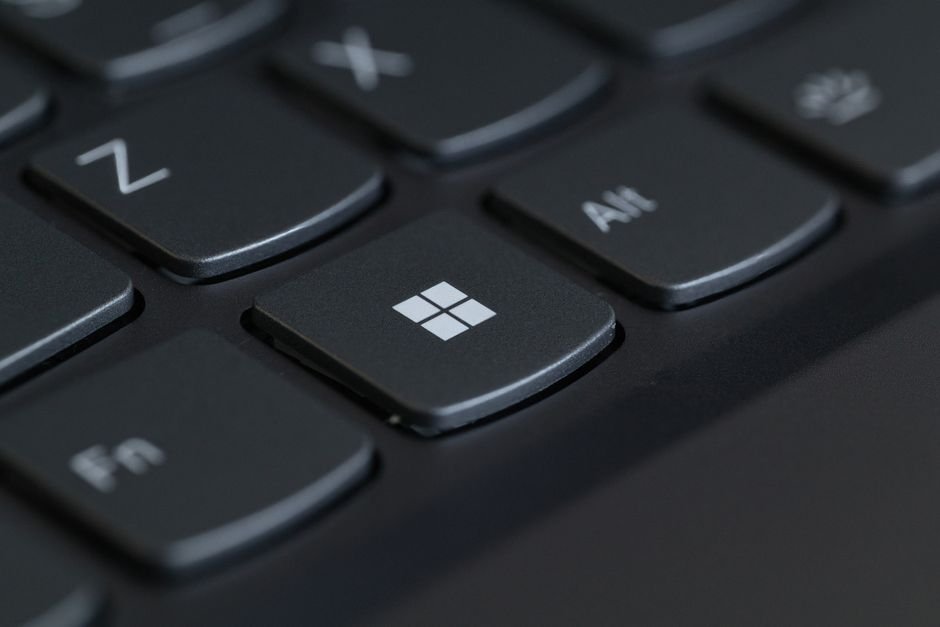
Don’t bother memorizing a specific function-key number — the position changes by model, so “Fn + F5” can send you hunting. Find it like this:
- Scan the top row (F1–F12) left to right.
- Look for a square rectangle with a diagonal slash (/) through it — that’s the touchpad seen from above.
- Press that key. If nothing happens, hold Fn and press it.
Samsung, LG, HP, Lenovo, Dell, and Asus all use this family of key, but which F-key it’s assigned to differs even within the same brand. Trust your eyes over your memory.
💡 Tip: some models have no icon key at all. If you’ve scanned the row and see nothing, it isn’t there — don’t burn time digging through the maker’s utility. Move to Method ② or ③.
One weakness of the shortcut: on some laptops, pressing it again shows no on-screen indication. The touchpad just goes quiet and never tells you it turned off.
Method ②: Turn it off in Windows Settings (and a warning first)
The path differs by Windows version:
- Windows 11: Windows key + I → Settings → Bluetooth & devices → Touchpad → flip the top switch off.
- Windows 10: Windows key + I → Settings → Devices → Touchpad → flip the switch off.
⚠ Stop here if you have no mouse. This switch is inflexible — once off, it won’t turn itself back on whether or not a mouse is plugged in. Turn it off with no mouse attached and you’ll have no way to get back in and turn it on.
If you already did that, you can revive it with the keyboard:
- Press Windows key + I to open Settings.
- Use the arrow keys to reach the left menu, pick Bluetooth & devices (Windows 10: Devices).
- Press Tab to move into the right-hand list, arrow down to the Touchpad item.
- When the blue focus border lands on the touchpad switch, press Space to turn it on.
If you can’t tell where focus is, tap Tab a few more times. Still lost? Plugging in a USB mouse is far faster.
Method ③: Turn it off only when a mouse is plugged in

This is the most practical answer for most people: the touchpad stays alive normally and goes quiet the instant you connect a mouse.
- Windows 11: Settings → Bluetooth & devices → Touchpad → click the arrow (∨) at the right of the Touchpad heading → uncheck Leave the touchpad on when a mouse is connected.
- Windows 10: Settings → Devices → Touchpad → uncheck Leave the touchpad on when a mouse is connected.
The name is confusing: it says “leave on,” but you must uncheck it to make the touchpad turn off with a mouse. Checked is the default — and that default means “keep the touchpad on even with a mouse plugged in.”
On Windows 11 this checkbox is collapsed, so plenty of people miss it. Click the arrow at the right end of the Touchpad switch first to expand it.
If you don’t see this option, you may not have a Precision Touchpad. Microsoft-standard Precision touchpads are controlled straight from Windows Settings; laptops with only a Synaptics or Elan maker driver need to open Control Panel → Hardware and Sound → Mouse and look for a separate tab. On some driver versions that tab doesn’t exist at all.
Method ④: Don’t disable — just cut the palm misfires
If cursor jumps while typing are your real problem, this is often better than turning it off:
- Touchpad sensitivity: in Touchpad settings, drop it to Medium or Low — light palm brushes get ignored.
- Tap options: turn off easy-to-trigger items like double-tap-to-drag and three-finger gestures.
- Hand position: keep your palms slightly raised or shifted to the outer palm rest instead of pinned to the front edge, and contact drops on its own.
Just lowering sensitivity fixes it for a surprising number of people. Worth a try before Method ②.
When the touchpad is unresponsive: the check order
From here it’s the opposite problem — a touchpad that worked and suddenly doesn’t.
Don’t reinstall the driver first. Top search results jump straight to deleting and reinstalling drivers, but the real cause usually resolves in the first three steps. Check in order:
- Press the icon key again. Most common cause. Tap the touchpad icon key (with Fn if needed) once more — it’s a toggle, so the same key both enables and disables.
- Double-tap the top-left corner. Some laptops turn the touchpad on/off by quickly double-tapping the top-left corner. HP support documents this for some of its models, and a few have a small indicator light there. Other brands vary — harmless to try.
- Check the Windows Settings switch. Go to Method ②’s path and confirm the switch isn’t off. If a mouse is already plugged in, Method ③’s unchecked box may have auto-disabled it — unplug the mouse to tell instantly.
- Device Manager — is it disabled? Press Windows key + X → Device Manager. Expand Mice and other pointing devices and Human Interface Devices; look for a down-arrow (disabled) or exclamation on the touchpad device. If disabled, right-click → Enable device.
- Only now the driver. Touch the driver only after those four are clean. In Device Manager, Uninstall device then reboot — Windows reloads the default driver. Installing the maker’s model-specific driver from its support page also happens here.
If the cursor still won’t move but an external mouse works, it’s likely a cable or hardware issue — past the point of settings fixes.
Which method fits you?
- Use an external mouse → Method ③. Set it once, forget it.
- Laptop only, no mouse → Method ④. Lower sensitivity first; fully off means losing the cursor.
- Need it off briefly for a presentation or writing → Method ①. Just remember where the icon key is.
- Never use it → Method ②. But only while a USB mouse is within reach.
- Touchpad is dead right now → icon key → corner double-tap → settings switch. Driver last.
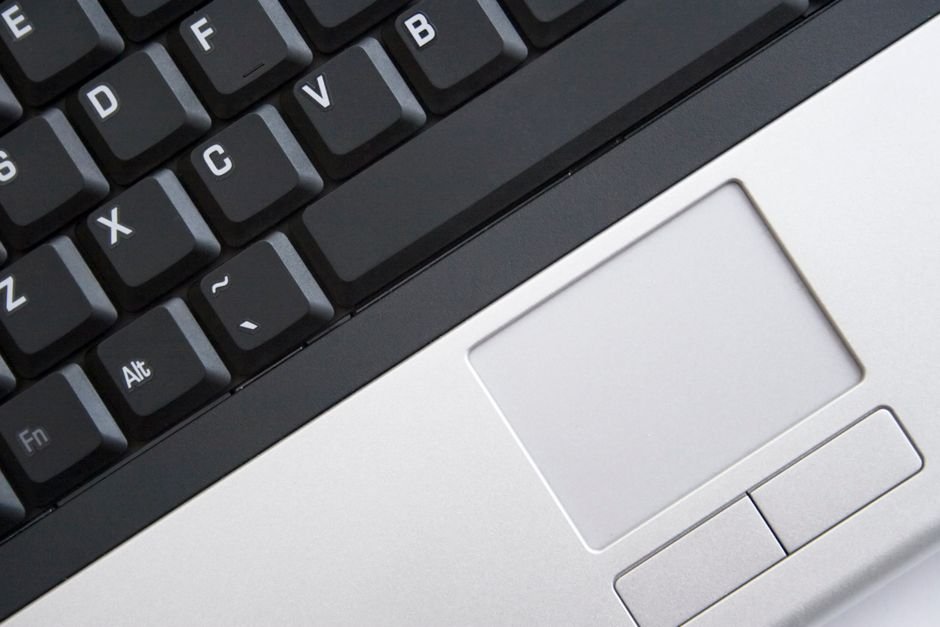
If your laptop is open in front of you, start at the top row and find that rectangle-with-a-slash icon. Whether that key exists decides which of the five paths above is yours.
Frequently asked questions
Can I disable the touchpad without a mouse?
Yes — use the keyboard shortcut (Method ①) or you can turn it off in Windows Settings, but only if a mouse is already plugged in so you can turn it back on. See the warning in Method ②.
Why did my touchpad turn off by itself?
Most likely an external mouse is connected and the “turn off when a mouse is connected” option (Method ③) is enabled, or the Fn shortcut key got toggled. Unplug the mouse or tap the touchpad key to bring it back.
Where is the touchpad setting in Windows 11 vs Windows 10?
Windows 11: Settings → Bluetooth & devices → Touchpad. Windows 10: Settings → Devices → Touchpad. The auto-off checkbox is collapsed under the Touchpad heading on Windows 11.
My touchpad key does nothing — now what?
Some models have no shortcut key. Move to Method ② (Windows Settings) or Method ③ (auto-off with a mouse). Both work without the key.
Bookmark this for the next time your touchpad acts up
Save this guide so you’re not re-searching mid-panic, and share it with anyone who’s fought a dead cursor. New Windows touchpad tips land on the blog regularly — bookmark SmartFixDaily and check back.