
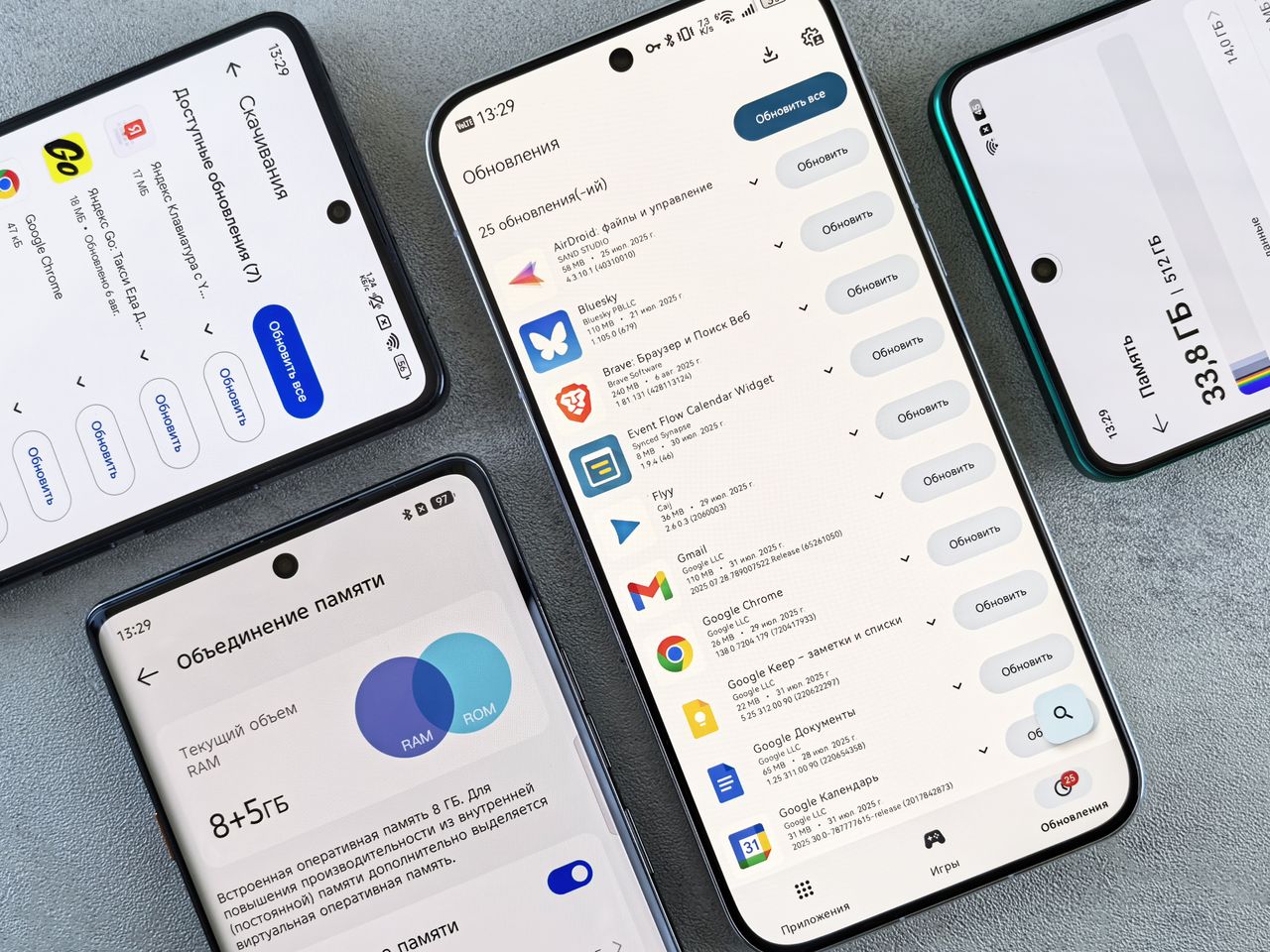
You open the Google Play Store to grab one app, and the screen just stays white. Down at the bottom, in small text, it says “failed to load an item.” No matter how many times you refresh, nothing changes.
Here is the good news: this error is almost never a sign that your phone is broken. It usually means the Play Store could not pull the item’s information from Google’s servers. You rarely need a factory reset or a trip to a repair shop. Get the order right and most cases clear up in a few minutes.
This guide walks you through it in the right sequence: a 30-second first check, the four likely causes, the exact difference between clearing cache and clearing data, a six-step fix order, what not to do, and a checklist for when nothing above works.
Quick answer: If the Play Store is stuck loading or shows “failed to load an item,” first check your internet connection, storage space, force-close and reopen the app, restart the device, and confirm date & time are set to automatic.
Still stuck? Widen the scope in this order: clear Play Store cache, then clear its data, remove the Play Store update, and finally clear Google Play services cache.
Start with these 30-second checks
Before diving into settings, follow a light-to-heavy order so you don’t lose any data:
- Force-close the Play Store from your recent apps, then open it again.
- Switch between Wi-Fi and mobile data to test the connection.
- Toggle Airplane mode on, wait 10 seconds, then turn it off.
- If that does not help, restart the device.
A lot of cases are solved right here. Infinite loading is often just a momentary network drop or a temporary glitch in the app’s state. Google’s own Play Help lists the same basics for download problems: check your internet connection, confirm you have storage space, force-stop and reopen the app, restart the device, and make sure date & time are set automatically.
Why does this error appear?
There are four main branches. Knowing which one fits makes the next steps shorter.
- Network problem. You have a signal but no actual data is flowing. This also happens on public Wi-Fi or a company network that blocks certain addresses.
- Corrupted temp files in the Play Store. This is the most common case.
- Wrong date or time on the device. If your phone’s clock is off, authentication against Google’s servers fails and the screen never advances.
- Low storage space. Google notes that if less than 1 GB of free space is available, downloads and installs can be blocked.
Cache clear vs. data clear: what’s the difference?
This is where many people get confused because the names sound similar. The result is quite different.
| Item | Clear cache | Clear data (Clear storage) |
|---|---|---|
| What gets erased | Temp files only | Temp files + app settings |
| Sign-in | Stays signed in | May ask you to re-accept terms |
| Side effects | Almost none | Parental controls or password-protection settings can reset |
| When to use | First choice, for most loading loops | Second choice, if cache didn’t fix it |
Google also points out that clearing cache or data can remove settings like parental controls or password protection, and you may need to re-accept the terms of service on next launch. So don’t jump straight to “clear data” — go cache first, then data.
The fix order, step by step
Step 1 — Clear the Play Store cache
On a Samsung Galaxy: open Settings › Apps › Google Play Store › Storage › Clear cache.
On most other Android phones: long-press the Play Store icon on the home screen, tap App info, then Storage & cache › Clear cache.
Menu names vary slightly by manufacturer, but “Storage” and “Storage & cache” are the same place.
Step 2 — If it still fails, clear the data
On the same screen, tap Clear storage or Clear data. When you reopen the Play Store you may see a terms-of-service screen — that is normal, just continue.
Step 3 — Confirm date & time are automatic
Open Settings › General or System › Date & time. Make sure Automatic date & time and Automatic time zone are both on. If either was off, turn it on, wait a few minutes, and try again.
Step 4 — Free up storage space
Open Settings › Storage and check free space. If it is under 1 GB, remove unused apps or old videos first.
Step 5 — Uninstall Play Store updates
Long-press the Play Store icon › App info › tap the three-dot menu at the top right › Uninstall updates. The app reverts to the factory version and then automatically reinstalls the latest one. The app does not disappear, so don’t worry.
Step 6 — Clear Google Play services cache (last resort)
Leave this for the end. Open Settings › Apps › Google Play services (tap “See all apps” if it is hidden) › Storage & cache › start with Clear cache.
Warning: Google does not recommend clearing the data for Google Play services unless you have tried everything else. Clearing that data can wipe saved passwords in Google Pay, transit cards, and payment-card info, and may force you to sign in again on the device. Clear the cache only, then check the result first.
What not to do
- Factory reset first. Google lists a reset as the very last step, after everything above.
- Install an unknown APK file. Trying to bypass the error this way just takes on a security risk.
- Delete your Google account in a hurry. Removing the account can delete some data on the device. Back up first if you must.
- Keep retrying with a VPN on. If a VPN is active, turn it off temporarily and check again.
- Mash the buttons repeatedly. It can actually make the “download pending” state last longer.
If it still fails: how to narrow it down
If you have done all of the above and still see the same screen, check these three things:
- Does another device show the same symptom? If another phone on the same Wi-Fi is stuck too, it points to a network or server issue, not your device. Test on mobile data.
- Does it happen for just one specific app? That app may not be supported on your device or in your country. This is not a store-wide problem.
- Did you recently update the system? If it started right after an update, open Settings › Software update and check for an additional update.
If none of those apply and you have already cleared cache and data, then it is time to consider a manufacturer service-center call or a factory reset. Back up your photos and contacts before any reset.
Today’s checklist
- Force-close and reopen the Play Store
- Test Wi-Fi and mobile data alternately
- Restart the device
- Clear the Play Store cache
- Turn on automatic date & time
- Keep at least 1 GB of free storage
- If still stuck, clear the Play Store data
- Last, uninstall Play Store updates
Follow that order, top to bottom — exactly. Keep the sequence and you are far more likely to fix it without losing any settings.
If you only try one thing right now, make it clearing the Play Store cache. It is three taps, takes under a minute, and does not sign you out or wipe any settings. If that alone fixes it, you don’t even need the steps below. If it doesn’t, work down from the top one by one.