5 Fixes When Your Computer Keeps Rebooting in a Loop
You press the power button, the Windows logo appears, and then everything goes black — only for the cycle to start again. If your PC refuses to reach the desktop and just keeps restarting, you’re stuck in what’s called a boot loop.
This usually traces back to one of several causes: a failed Windows update, corrupted system files, a driver conflict, or a hardware connection issue. Before you keep yanking the power cable, work through the steps below in order.
1. Enter the Automatic Repair Menu
When Windows can’t boot normally a few times in a row, it offers a recovery environment. That screen is your starting point.
While the PC is attempting to boot and the Windows logo is on screen, hold down the power button until it shuts off. Repeat this two or three times. Windows will eventually show a message that it’s “Preparing automatic repair,” and from there you can open the recovery options.
Once you’re in, click Advanced options — most of the fixes below happen from this menu.
2. Run Startup Repair
Windows has a built-in tool that scans for and tries to fix boot-related problems automatically.
From the recovery screen, go to Advanced options → Startup Repair. Windows will check for issues that prevent booting and attempt to repair them. When it finishes, your PC will restart — confirm whether it boots normally this time. A surprising number of boot loops clear up at this step alone.
3. Uninstall Recent Updates
If the rebooting started right after a Windows Update, that update is the most likely culprit.
In the recovery menu, go to Advanced options → Uninstall Updates. You’ll see two options: the latest quality update and the latest feature update. Uninstall whichever one lines up with when the problem started, then reboot. This is especially effective when a driver bundled with an update is causing the loop.
4. Boot Into Safe Mode
Safe Mode loads Windows with only the essential drivers and services. If a driver or program conflict is the cause, Safe Mode usually boots normally while the regular mode does not.
From the recovery menu, go to Advanced options → Startup Settings → Restart. After the restart, press the number key for Safe Mode with Networking. Once you’re in, uninstall any programs or drivers you installed just before the problem started. Graphics drivers and antivirus software are the most common offenders.

5. Check Your Hardware Connections
If nothing software-side helps, the cause may be physical. Loose memory modules or a weak power connection can both trigger a boot loop.
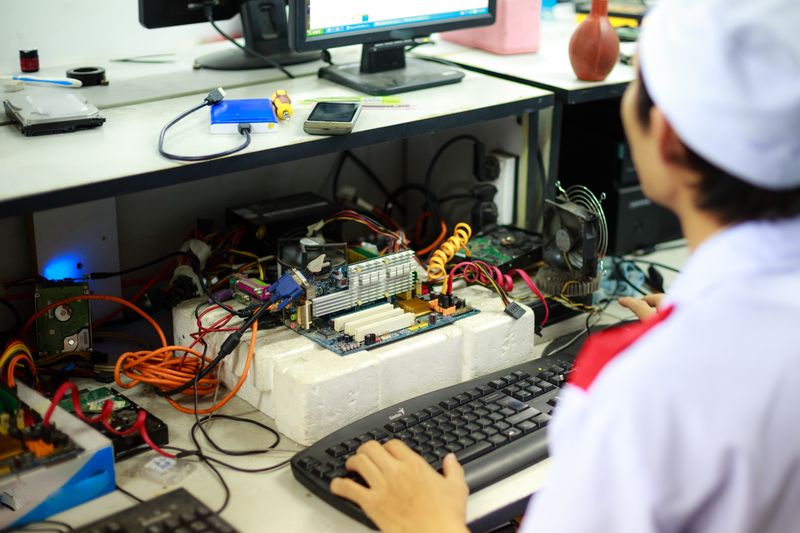
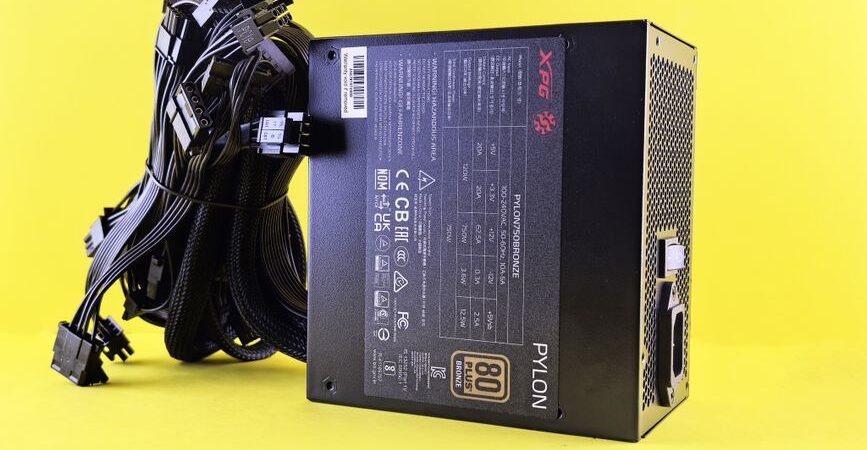
Shut the PC down completely and unplug the power cable. If you have a desktop, open the case and reseat the RAM sticks — push them firmly until the clips click back into place. While you’re in there, check that the 24-pin motherboard cable and CPU power cable are fully seated.
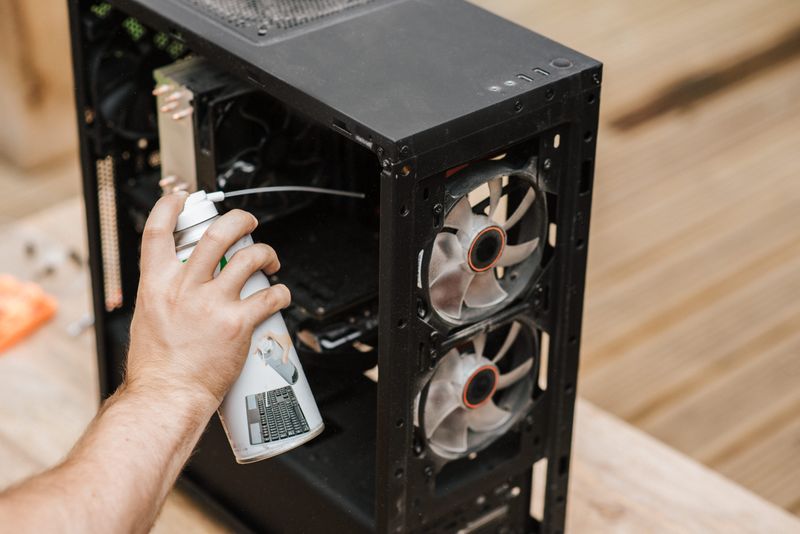
Dust buildup around the CPU cooler is another common cause: if the fan can’t spin freely, the CPU overheats almost immediately on boot, the system shuts itself off to protect the hardware, and the cycle repeats. A quick blast of compressed air around the cooler and exhaust vents is worth doing.
A Few Extra Things Worth Checking
Overheating is one of the most overlooked causes of a boot loop. If the CPU cooler has stopped spinning or is choked with dust, temperatures spike within seconds of startup and the system shuts down to protect itself. Confirm the cooler is spinning before assuming it’s a software issue.
If you’ve worked through all five steps and the loop continues, try System Restore from the same Advanced options menu to roll Windows back to a point when it was working. If even that fails, the problem is likely a failing storage drive or motherboard, and it’s time for a professional diagnostic. Back up any data you can still access before that appointment.
Wrapping Up
A PC stuck in a reboot loop is almost always caused by one of several things: a bad Windows update, corrupted system files, a driver conflict, a loose hardware connection, or overheating. Start by entering the recovery environment and running Startup Repair. If that doesn’t work, uninstall the most recent update and boot into Safe Mode to remove suspect software. If the loop still continues, reseat your RAM and clear out dust around the cooler. And if nothing helps, back up your files and have the hardware inspected — a failing drive or motherboard is harder to diagnose on your own.