
Your monitor starts flickering out of nowhere — the screen blinks, dims for a split second, or cuts to black and comes right back. It feels random, but it almost never is. In most cases the culprit is one of a handful of things: a loose cable, a refresh-rate mismatch, an outdated graphics driver, or a failing power connection.
These fixes work on any Windows 10 or 11 PC or laptop. This guide walks through them in the order that finds the problem fastest, so you can stop guessing and get a stable picture again.
1. Reseat the Monitor Cable First
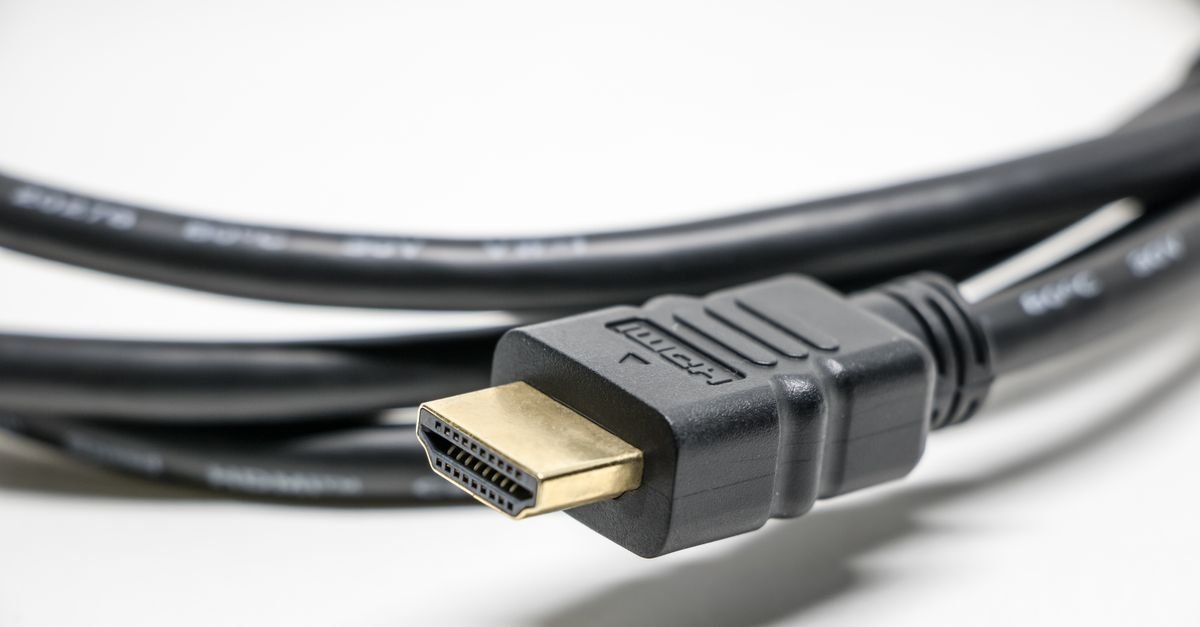
The majority of flickering cases trace back to a loose HDMI, DisplayPort, or USB-C connection. Before touching any settings:
- Turn the monitor off.
- Unplug the HDMI or DisplayPort cable at both ends.
- Firmly reconnect it until it clicks fully into place.
- Reconnect the other end on the PC itself.
- If there is a spare port, switch to it.
- Check whether the flickering has stopped.
Quick tell: if the screen flickers when you wiggle the cable, you are dealing with a bad connection or a worn cable — not a software problem.
2. Test With a Different Cable
If reseating does not help, the cable itself may be damaged internally (even when it looks fine):
- Swap in another HDMI or DisplayPort cable.
- On a laptop, try a different USB-C cable.
- Inspect the cable for sharp bends or pinched spots.
- Remove any adapters or dongles and connect directly.
A direct connection with a cable both devices fully support is always the most stable setup — adapters are a common hidden cause of intermittent flicker.
3. Check the Refresh Rate Setting in Windows
If your monitor is set to a refresh rate it cannot sustain — or the cable cannot carry reliably — the image becomes unstable. This is especially common with high-refresh monitors paired with older cables.
- Right-click the desktop and open Display settings.
- Go to Advanced display.
- Check the current refresh rate.
- Select 60Hz or the manufacturer-recommended value.
- Apply and see if the flicker stops.
Diagnostic clue: if 60Hz is rock-solid but higher rates flicker, the cable, GPU, or monitor spec is the limiting factor — check all three against each other.
4. Update Your Graphics Driver
Cables and refresh rate ruled out? Time to look at the driver:
- Right-click the Start button and open Device Manager.
- Expand Display adapters.
- Note your graphics card name.
- Check for driver updates, or download the latest from the maker’s website.
NVIDIA, AMD, and Intel all offer dedicated apps that keep drivers current automatically — worth installing if you have not already.
5. Verify Resolution and Scaling
A wrong resolution or scaling setting can make the picture look unstable even when nothing is technically broken:
- Right-click the desktop → Display settings.
- Select the affected monitor (numbered 1, 2, …).
- Set resolution to the Recommended value.
- Set scaling to the recommended percentage too.
- On dual-monitor setups, repeat this for each display.
Resolution and refresh rate interact, so it is best to confirm both together.
6. Check Power and Test the Monitor Itself
Still flickering? The problem may be power delivery or the panel itself. A loose power strip contact or a tired power adapter can cause the exact same blink-off-blink-on behavior as a signal fault.
- Reconnect the monitor’s power cable firmly.
- Try a different wall outlet.
- Bypass the power strip entirely and plug into the wall.
- Connect the monitor to a different PC or laptop.
- Connect a different monitor to your PC.
- Run a factory reset from the monitor’s own menu.
The decisive test: if the same flickering follows the monitor onto another computer, the monitor itself is failing — time for a warranty claim or replacement.
Quick Troubleshooting Reference
| Symptom | Most likely cause | Fix |
|---|---|---|
| Flickers when cable moves | Loose connection | Reseat or replace the cable |
| Stable at 60Hz, flickers at high refresh | Cable/spec mismatch | Use a certified high-bandwidth cable |
| Random blinking after updates | Graphics driver | Update or clean-reinstall the driver |
| Flickers even on another PC | Monitor hardware fault | Reset, then repair or replace |
| Cuts to black and returns | Power issue | Wall outlet, new power cable/adapter |
Frequently Asked Questions
Why does my monitor flicker at 144Hz?
The cable or port usually cannot sustain the bandwidth that high refresh rates demand. Use a certified DisplayPort or high-speed HDMI cable connected directly — no adapters — or drop to a lower refresh rate to confirm.
Can a bad HDMI cable cause flickering?
Yes, and it is one of the most common causes. Internal damage from sharp bends or pinching breaks the signal intermittently even when the cable looks fine. If flickering stops when you swap cables, you have found the problem.
Why does my screen flicker after a Windows update?
Updates sometimes install a generic or buggy graphics driver. Open Device Manager, expand Display adapters, and reinstall the latest driver straight from NVIDIA, AMD, or Intel instead of relying on Windows Update.
Bottom Line
Work top to bottom: reseat the cable, test a spare one, match the refresh rate, update the driver, verify resolution, and finally rule out power and the panel itself. Nine times out of ten, the fix costs nothing but five minutes.
Found this useful? Bookmark SmartFixDaily for more plain-English fixes — and share this guide with someone whose monitor has been driving them crazy.
Photo credits: Pexels contributors.