
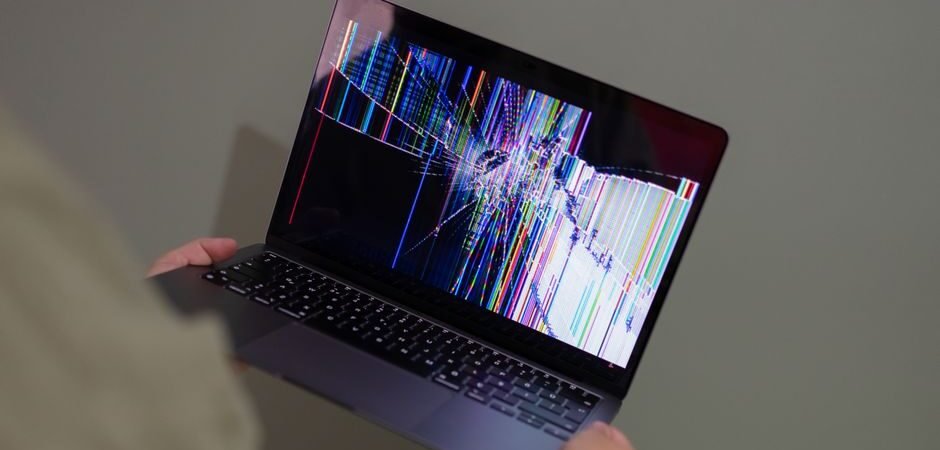
Few Windows 11 glitches are as frustrating as watching a cumulative update reach 35% during a reboot, pause, and then display: “Undoing changes made to your computer. Don’t turn off your computer.” When you check Windows Update history, you are greeted with error code 0x800F0922.
Most users immediately assume their primary drive (C:) is full and start deleting personal files. However, even if you have 500 GB of free space on your SSD, the update will continue to fail. That is because the actual bottleneck is usually a tiny, hidden 100MB partition that you never see in File Explorer: the EFI System Partition (ESP).
0x800F0922 with a 35% rollback is almost always caused by a full hidden EFI System Partition (the 100MB boot partition) — not your C: drive. Mount it with mountvol S: /S, delete leftover font files in EFI\Microsoft\Boot\Fonts, then retry the update.
What Error 0x800F0922 Really Means
Internally, Windows classifies 0x800F0922 under the flag CBS_E_INSTALLERS_FAILED. This indicates that your computer successfully downloaded the update package, but failed during the physical installation step. Because the failure occurs when writing new boot and security files to the EFI partition during reboot, upgrading your internet speed or re-downloading the patch will not resolve the issue.
The rollback mechanism at 35% is a built-in safety net. Windows detects that it cannot write necessary boot files to the EFI partition, cancels the operation, and safely restores your system to its prior state. While your PC remains functional, security patches remain uninstalled until the underlying storage barrier is cleared.
Why This Boot Partition Issue Surged
Microsoft officially confirmed that security updates (such as KB5089549 on Windows 11 24H2 and 25H2) fail with 0x800F0922 if the free space on the EFI System Partition drops below approximately 10MB.
The legacy design of many OEM systems is the primary root cause. Computer manufacturers frequently configured 100MB EFI partitions during the Windows 10 era. Over years of major OS upgrades, accumulated boot files, Secure Boot keys, and third-party driver logs exhaust this space. While Microsoft released updates (such as KB5089573) and Known Issue Rollbacks (KIR) to mitigate the issue, systems with severely cramped EFI partitions still require manual maintenance.
Diagnostic Matrix: Identifying Your Exact Trigger
Before executing command-line scripts, match your specific symptoms to the table below to apply the correct fix quickly:
| Symptom Observed | Most Likely Cause | Recommended Fix |
|---|---|---|
| Reboots and rolls back at 35%–36% | EFI System Partition (ESP) full | Clear EFI font files (mountvol S:) |
| Downloads pass, installation loops & fails | Corrupted update cache | Reset SoftwareDistribution & catroot2 |
| Multiple updates fail with code 0x800F0922 | Windows system file corruption | Run DISM /RestoreHealth + sfc /scannow |
| Fails on enterprise/remote connection | VPN or third-party security software | Temporarily disconnect VPN & antivirus |
| Fails when enabling .NET Framework 3.5 | Missing installation source files | Mount Windows ISO & pass DISM /Source |
Step 1: Perform Initial Zero-Risk Checks
Before modifying system partitions or registry settings, complete these non-destructive preliminary steps:
- Perform a Full Restart: Click Start > Power > Restart. Do not select “Shut down”, as Windows Fast Startup saves kernel session state to disk, which can preserve corrupted update locks.
- Run the Built-in Troubleshooter: Navigate to
Settings > System > Troubleshoot > Other troubleshootersand click Run next to Windows Update. This automatically restarts stalled update services and resets broken permissions.
Step 2: Free Up Space on the EFI System Partition (ESP)
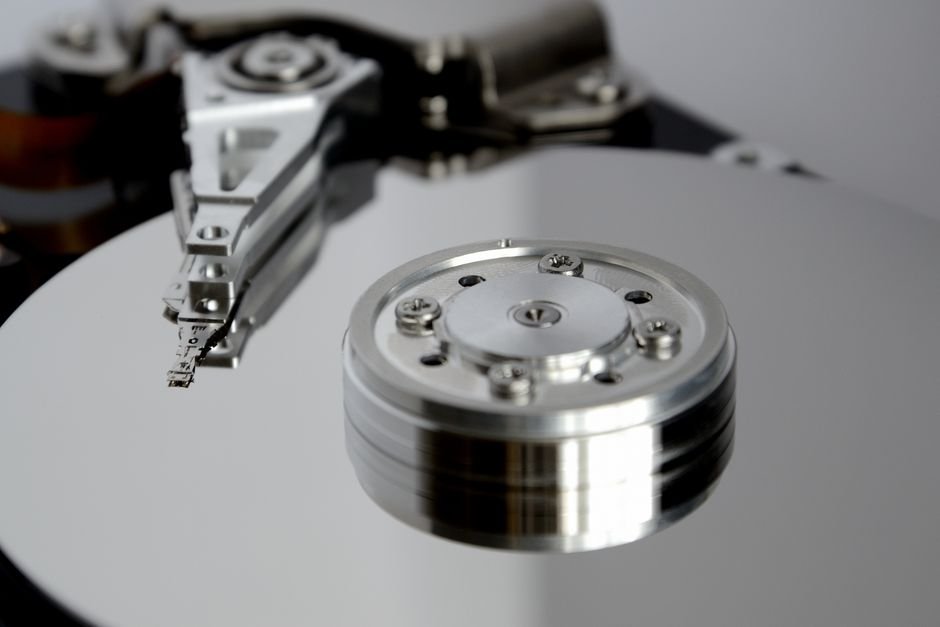
If your update consistently rolls back at the 35% mark, clearing unused fonts from the EFI partition is the single most effective resolution. During OS setup, Windows stores unused localized font files inside the EFI directory that occupy tens of megabytes.
recoverydrive.exe before proceeding. Delete only files within the designated Fonts subfolder.
Follow these steps in an elevated Command Prompt or Terminal (Run as Administrator):
# 1. Mount the hidden EFI partition to drive letter S:
mountvol S: /S

# 2. Navigate to the Boot Fonts directory
S:
cd EFI\Microsoft\Boot\Fonts

# 3. View existing font files and delete only .ttf files
dir
del *.ttf

# 4. Return to C: drive and unmount the EFI partition
C:
mountvol S: /D
Deleting unused .ttf files typically reclaims 30MB to 50MB of free space on the EFI partition, which is more than enough to allow cumulative updates to install successfully.
Step 3: Repair System Files with DISM and SFC
If multiple Windows features or updates fail simultaneously, system image corruption may be preventing the installer from executing properly. Always run DISM before SFC so that System File Checker compares your OS against a freshly restored master blueprint.
Execute the following commands sequentially in an Administrator Command Prompt:
DISM /Online /Cleanup-Image /RestoreHealth
sfc /scannow
Note: DISM may appear stuck near 20% for several minutes while fetching fresh component files from Microsoft servers. Allow the process to complete fully without closing the window.
Step 4: Reset Corrupted Windows Update Cache
When update packages download partially or become corrupted in transit, clear the cache folders (SoftwareDistribution and catroot2) so Windows can rebuild clean repositories.
# Stop background update services
net stop wuauserv
net stop cryptSvc
net stop bits
net stop msiserver

# Rename temporary cache directories
ren C:\Windows\SoftwareDistribution SoftwareDistribution.old
ren C:\Windows\System32\catroot2 catroot2.old

# Restart update services
net start wuauserv
net start cryptSvc
net start bits
net start msiserver
Restart your PC and check for updates again. The initial search may take slightly longer than usual while Windows index caches are regenerated.

Step 5: Address Enterprise VPN and .NET Framework Conflicts
If error 0x800F0922 occurs in specific enterprise or feature installation contexts, adjust your network configuration accordingly:
- Active Corporate VPNs: Disconnect any active VPN tunnels before clicking update. Corporate network policies and WSUS routing can intercept update payloads, causing verification timeouts.
- Third-Party Security Suites: Real-time antivirus hooks may block the installer from modifying EFI boot entries. Temporarily disable active protection during the update cycle.
- .NET Framework 3.5 Installation Failure: If 0x800F0922 appears while enabling .NET Framework in Windows Features, specify an offline ISO source path via DISM:
DISM /Online /Enable-Feature /FeatureName:NetFx3 /All /Source:D:\sources\sxs /LimitAccess(Replace
D:with your mounted Windows 11 ISO drive letter).
Step 6: Last Resort Options (Manual KB Install & In-Place Upgrade)
If error 0x800F0922 persists after clearing EFI space and resetting cache files, choose one of these final recovery methods:
- Manual Package Installation: Note the failing KB number from Windows Update History, visit the official Microsoft Update Catalog, download the standalone
.msuinstaller matching your system architecture (x64 or ARM64), and install it manually. - In-Place Repair Upgrade: Download the official Windows 11 ISO file, mount it, and run
setup.exe. Select “Keep personal files and apps”. This completely reinstalls core Windows system files and rebuilds boot partition mappings without wiping your personal data or installed applications.
Frequently Asked Questions
Will deleting font files from the EFI partition break Windows?
No. The .ttf files inside EFI\Microsoft\Boot\Fonts are unused localized font caches left over from the initial OS install. The actual Windows bootloader (EFI\Microsoft\Boot\bootmgfw.efi) and the BCD store live in the parent Boot folder and must never be touched. Delete only files inside the Fonts subfolder.
My update still fails after clearing the EFI partition. What now?
If free space exceeds 30MB and the error persists, the cause is likely corrupted system files or a blocked update cache. Run DISM /Online /Cleanup-Image /RestoreHealth followed by sfc /scannow, then reset the SoftwareDistribution and catroot2 folders. As a last resort, perform an in-place upgrade using the Windows 11 ISO.
Is error 0x800F0922 dangerous for my PC?
No. The rollback at 35% is a protective safety feature — Windows automatically restores your previous working state. Your personal files are safe; only the pending security update remains uninstalled until the EFI space or cache issue is resolved.
Preventative Maintenance Checklist
To prevent error 0x800F0922 from recurring during future monthly Patch Tuesdays, keep these best practices in mind:
- ✅ Document Available EFI Space: Note how much free EFI space was recovered after cleanup.
- ✅ Maintain a USB Recovery Drive: Keep a working recovery media flash drive handy for quick emergency repairs.
- ✅ Install Preview Updates When Fixes Are Released: Optional cumulative preview updates often contain early fixes for known update engine bugs before mandatory releases.
- ✅ Track Rollback Percentages: Always note the exact percentage where an update fails—35% almost always points directly to boot partition bottlenecks.
If this guide helped you resolve your Windows 11 update rollback, bookmark this page or share it with fellow tech enthusiasts who are troubleshooting update errors!