
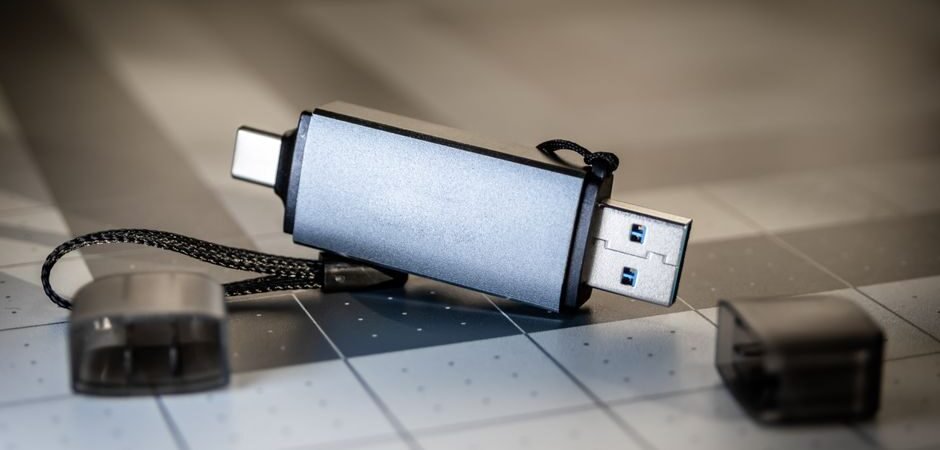
You plug a USB flash drive into your PC and Windows throws up a message: “You need to format the disk before you can use it” — or worse, nothing happens at all. When that little drive holds work files, family photos, contracts, or a graduation project, the panic is real.
A lot of people’s first instinct is to click Format and hope it works again, or to fire up a recovery program right away. Both can make things worse. Before you do anything destructive, run through these six checks. Most “dead” USB drives aren’t dead — they’re just misbehaving in a way you can sort out without losing a single file.
1. Check the USB port before you blame the drive
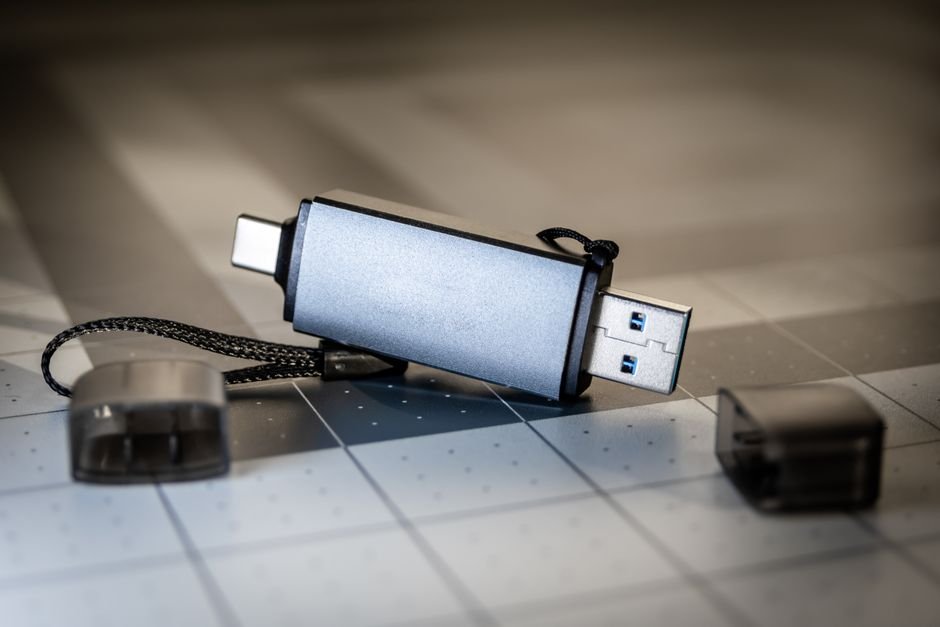
When your USB drive is not showing up — or Windows says it isn’t recognized at all — the port is the first suspect, not the drive itself. This is the most basic step, and the one most people skip. Try these quick moves:
- Plug the drive into a different USB port. On a desktop, the rear ports on the tower are usually more stable than the front ones.
- Try the same drive on a different computer or laptop. If it works elsewhere, the issue is your original machine, not the drive.
Isolating the port from the drive takes about thirty seconds and saves you from “fixing” a problem that was never there.
2. Check Disk Management before assuming it’s fried
File Explorer might show nothing, but Windows Disk Management often still sees the device. To open it:
- Click Start and search “Disk Management”, or
- Press
Windows + R, typediskmgmt.msc, and hit Enter.
If the drive shows up as “Unallocated,” “RAW,” or “Not Initialized,” that usually points to a filesystem error rather than physical damage. In that state, your data may still be recoverable with the right approach.
3. Look for driver errors in Device Manager
Sometimes the drive is connected but Windows fails to recognize it because of a driver glitch. Here’s how to spot it:
- Open Device Manager.
- Look under Disk drives or Universal Serial Bus controllers for a yellow warning icon.
- Right-click the device → Uninstall, then reboot your PC.
Windows will automatically reinstall the driver on startup, and a simple driver issue often clears right up.
4. If the data matters, never format
This is the most important rule. When Windows says “format to use,” the urge to click is strong — but formatting overwrites your existing data with a fresh, empty structure. Recovery gets harder, and even recovered files can come back partially corrupted.
If your goal is to get the data back, leave the drive exactly as it is. Don’t write anything to it, don’t run a scan on it — and if the contents are critical, contact a professional data-recovery service before you do anything else.
5. Be careful with recovery software
There’s no shortage of recovery tools — Recuva, EaseUS, Disk Drill and others are well known. But a few cautions matter:
- Where you install the software and how it scans can actually lower your recovery success rate.
- A wrong recovery attempt creates overwrite risk — writing new data onto the very sectors you’re trying to save, which even pros can struggle to undo.
For truly important data, a quick consultation with a recovery specialist is almost always safer than going DIY.
6. Make backups a habit
USB drives are convenient and portable, but they fail more often than people expect. Common culprits:
- Pulling the drive out without using “Safely Remove Hardware”
- Using cheap, old drives for years
- Physical shock, moisture, or heat exposure
One simple habit — a copy on the cloud, an external hard drive, or a NAS — protects you from a single small mistake turning into total data loss.
Quick FAQ
Q: Can a formatted USB be recovered?
A: Often, yes — especially right after formatting. But if you’ve saved new files onto it since, recovery becomes very difficult.
Q: The drive shows up but folders won’t open.
A: That can mean filesystem corruption, which is frequently fixable with logical recovery.
Q: My USB is getting hot.
A: That suggests an internal short or circuit problem. Stop using it immediately and have it checked by a professional.
Q: Are free recovery programs safe?
A: Fine for simple deleted-file recovery, but important data or drives Windows won’t recognize usually need professional equipment.
Q: Is data recovery possible if the USB is not recognized?
A: Usually, yes — if you stop using the drive immediately. Professional data recovery has the best odds before any format or scan overwrites the sectors where your files live.
The takeaway
When a USB drive stops being recognized, blindly formatting it or running a recovery tool first can make things worse. The smartest move is to preserve the drive exactly as it is and get a proper diagnosis — especially when the data matters. If you found this useful, bookmark it for later or share it with someone who’d panic at that “format this disk” prompt.