
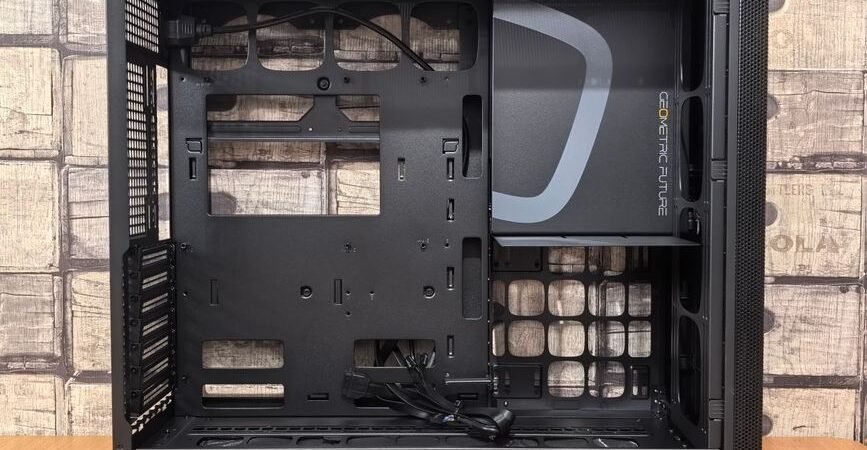
One moment you’re working — the next, your screen goes black and the whole machine powers off with no warning. Unlike a blue screen, there’s no error message, just a sudden loss of power. Most of the time this points to overheating, a power-supply problem, a loose component, or a Windows power setting — and it’s worth fixing fast, because repeated shutdowns can damage hardware.
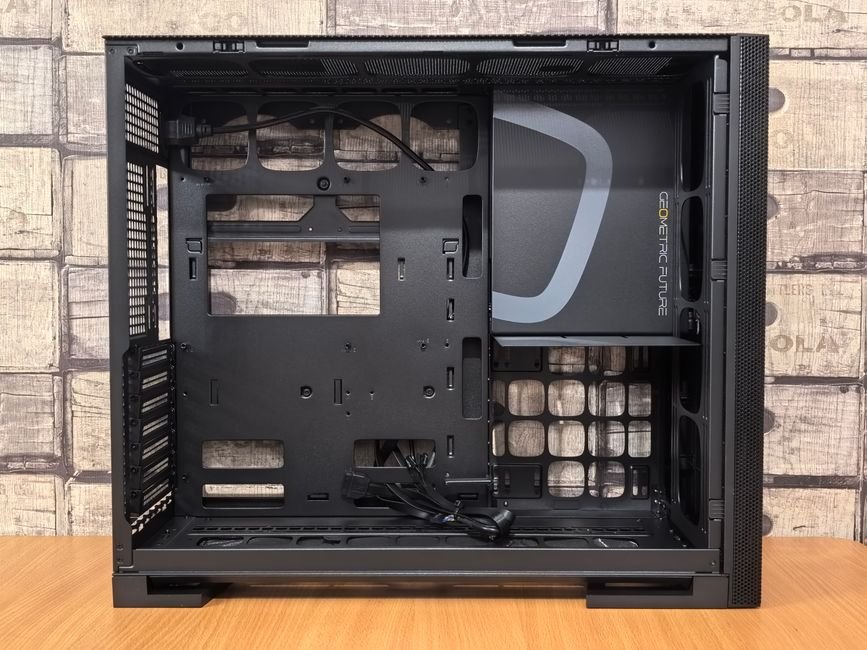
It tends to strike during heavy tasks like gaming or video editing, but it can happen anytime. Walk through these five checks in order and you’ll usually find the cause without a trip to the repair shop.
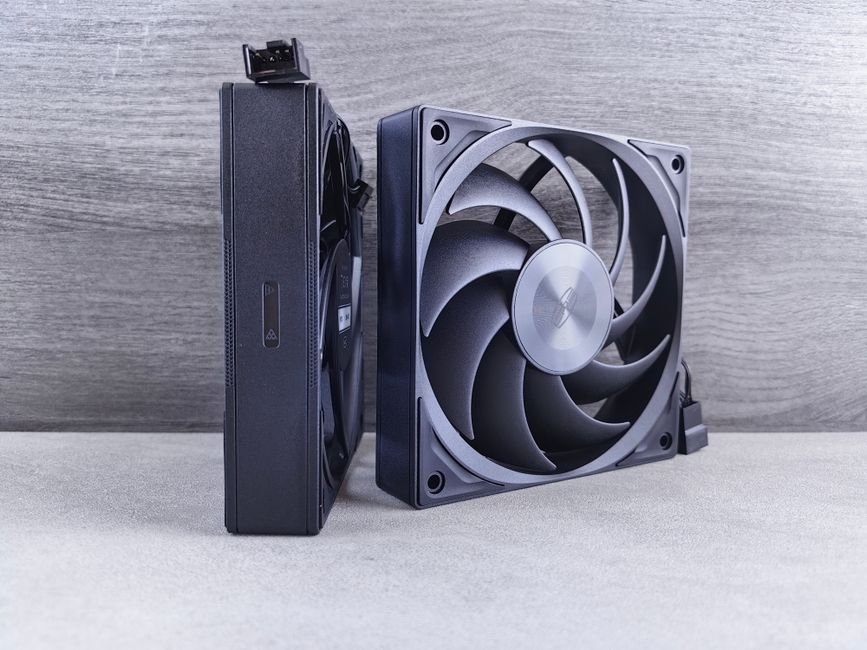
1. Check for Dust and Overheating
Overheating is the most common culprit. When dust builds up inside the case, heat can’t escape, temperatures climb, and the computer shuts itself off to protect its parts. Power down fully, open the case, and clear dust from the CPU cooler and graphics card — and check that the fans are actually spinning. If the shutdown only happens during gaming or editing, overheating is very likely the cause.
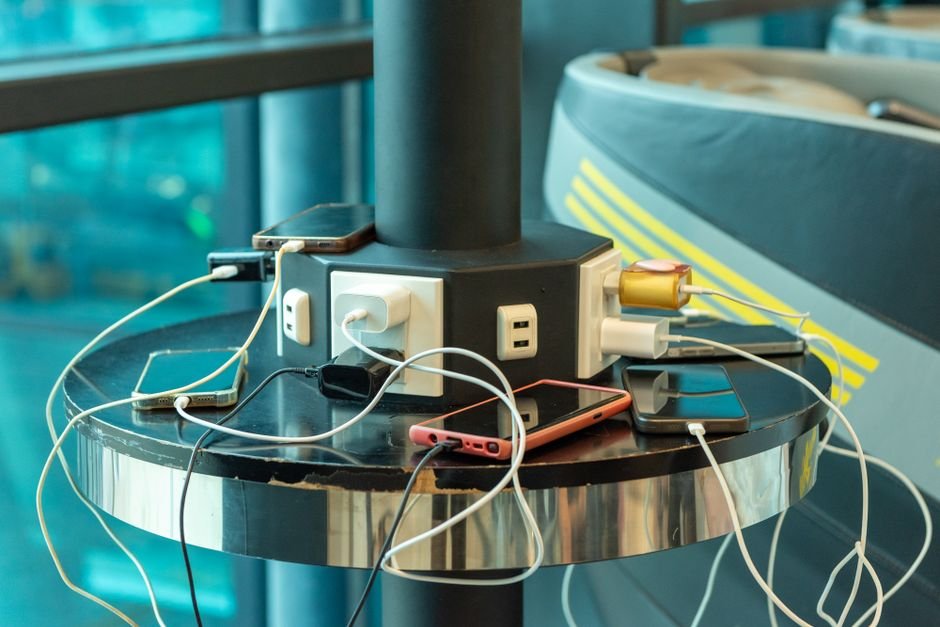
2. Inspect the Power Cable and Power Strip
An unstable power supply can cut your PC off without warning. Make sure the cable at the back of the tower is seated firmly, then plug the computer directly into a wall outlet instead of a crowded power strip. Old or under-rated strips deliver uneven power, so see whether the symptom disappears when you change outlets.
3. Review Your Windows Power Settings
Sometimes it isn’t hardware at all — Windows is just set to sleep too aggressively. In Settings → Power & sleep, confirm the sleep and screen-off timers aren’t set too short (it’s easy to mistake sleep for a full shutdown). Also, since Fast Startup occasionally causes trouble on certain setups, try turning it off if the problem persists.
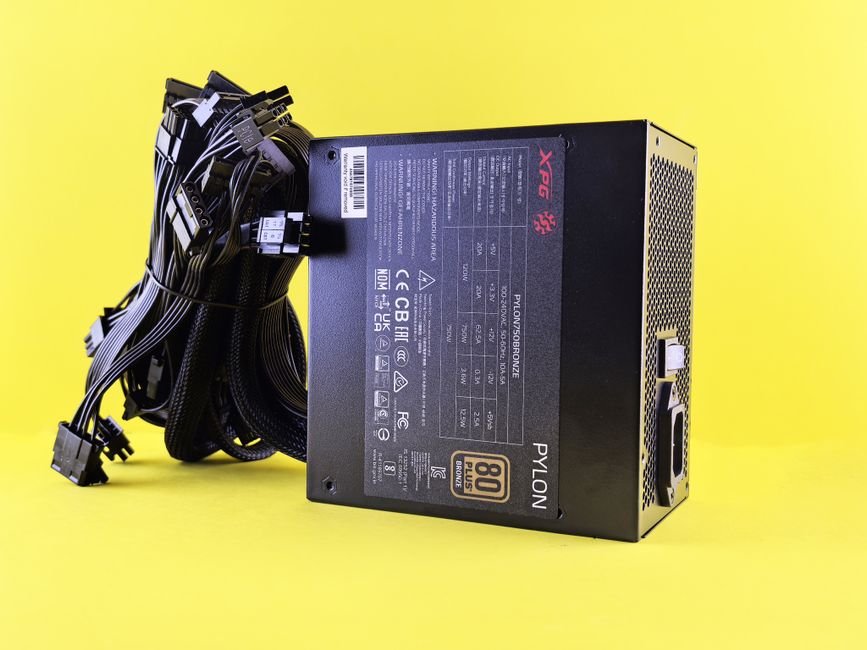
4. Test the Power Supply Unit (PSU)
The PSU feeds power to every component. When it ages or can’t supply enough wattage, random shutdowns become frequent — especially after you’ve added a graphics card or more hardware. Because a PSU is hard to test at home, if everything else checks out, have a repair shop measure it. If it’s years old, replacement is often the fix.
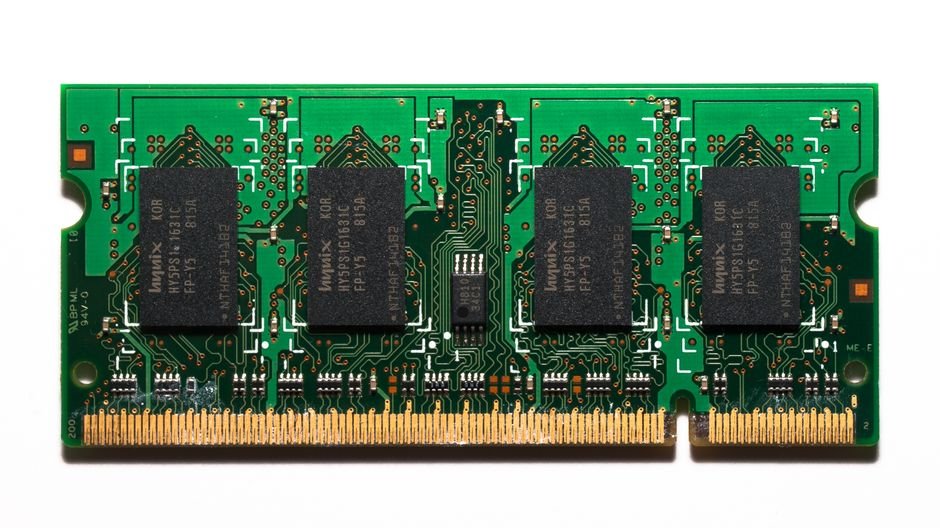
5. Reseat Memory and Expansion Cards
If a memory stick or graphics card isn’t seated properly, the system can cut out mid-use. Power down, unplug, open the case, and firmly reseat the RAM and GPU — wipe the contacts with a soft cloth if there’s dust. If shutdowns continue after reseating, the component itself may be failing.
A Few Extra Things to Check
If the shutdown happens only with one specific program or game, your PC may simply be unable to handle its power or performance demands — lower the graphics settings or clear background apps. And if it occurs often in hot summer rooms, give the case breathing room and improve ventilation.
Final Thoughts
A computer that shuts off suddenly is usually crying out about overheating, unstable power, or a loose component. Start by clearing dust and checking the cable and power strip, then work through the power settings and component seating — and if it only dies during heavy tasks, suspect heat or insufficient wattage. If none of these fix it, get the PSU checked before more damage is done. Bookmark this checklist for the next time your PC cuts out, and share it with anyone fighting the same mystery black screen.
Photo credits: Pexels contributors.