
Windows 11 Print Queue Stuck on “Deleting”? The Safe Spooler Cleanup
You hit Cancel on a Windows 11 print queue, but the document just sits there frozen on “Deleting.” Before you reach for the Print button again, stop — pressing Print only stacks duplicate jobs and hides the original error.
On Windows 11 the safe recovery order is Cancel → restart the Print Spooler → clear the spool files (the temporary print spooler files Windows is holding). Microsoft’s own guidance also says to power the printer off for at least 60 seconds first. Skip a step or jump straight to deleting system files and you can wipe jobs from other printers too. Here is the safe path that clears a stuck Windows 11 print queue without damaging anything else.
🔍 Why does a canceled document freeze on “Deleting”?
When one document at the front of the line never gets a “complete” signal from the printer, every job behind it waits in line. If the printer ran out of paper or went offline first, and you then sent the same file several times, the queue fills up fast. If the Cancel button turns gray or the “Canceling” label never goes away, the Print Spooler is almost certainly still holding the job file. Microsoft documents a four-step order for exactly this: cancel the queue, restart the spooler, clear the spool folder, then restart the device. The urge to press Print again on a deadline is real — but that is the first habit to break. Duplicate jobs make it nearly impossible to tell which one caused the original error.
🖨️ Where do you clear the print queue on Windows 11?
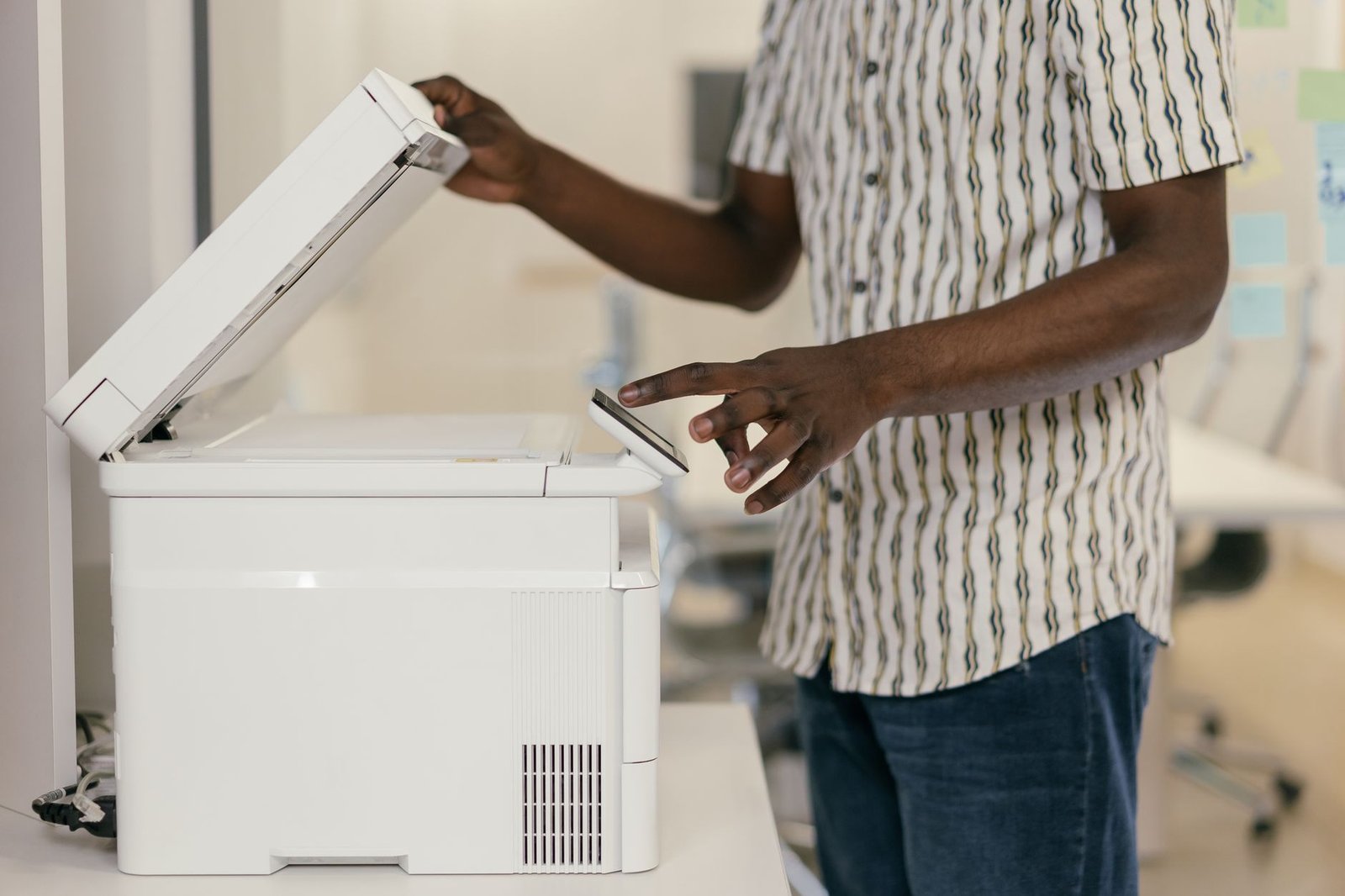
When a Windows 11 print queue won’t clear, the first stop is Settings. Open Start → Settings → Bluetooth & devices → Printers & scanners. Pick the printer you actually use, click Open print queue, and cancel the stuck document. If several printers are registered, double-check the printer name at the top of the queue window — people sometimes clear an empty queue on the wrong device and think the problem is unsolved. Samsung’s support docs make the same point: open the print job list and cancel all documents first.
Use this quick check before you restart the spooler:
| Queue status | What it means | Next step |
|---|---|---|
| List is empty | Cancel succeeded | Send one test page |
| Stuck on “Deleting” | Spooler error likely | Restart the service |
⚙️ When should you restart the Print Spooler?
When a normal cancel does nothing, press Windows key + R, type services.msc, and Enter. Find Print Spooler in the list, right-click it, and choose Restart. It is deflating to power the printer off and on several times only to find the document still there — but that is because Windows, not the printer, is holding the temporary job. Restart the spooler, confirm the queue is empty, then send a single test file. One caution from HP’s official docs: resetting the spooler environment can also cancel pending jobs from other printers registered on the PC. On a shared office or school printer, ask your administrator before doing this alone.
🛱️ Is it safe to delete the PRINTERS folder files directly?
Only when a normal cancel and a spooler restart have both failed. The folder C:\Windows\System32\spool\PRINTERS can hold temporary job files waiting to be sent to the printer. The catch: do not delete files while the service is running. Stop Print Spooler first, then clear the files — never delete the folder itself or touch anything else under System32. Restart the service afterward. Clearing the spool does not delete your original Word, PDF, or photo files. It only drops jobs that were never printed, so resend anything you still need. If the same symptom returns after a reboot, it is time to check for duplicate drivers or the network printer’s IP.
❓ Frequently asked questions
Q. Why does my printer document keep freezing on “Canceling”?
The Print Spooler may be corrupted or stuck reprocessing an unfinished job. Stop new prints and restart the spooler.
Q. Does clearing the print queue delete my PDF too?
No. Your original PDF or document stays. Only the temporary print job sent to the printer is canceled.
Q. Why does the document reappear after I restart the spooler?
The app that requested the print, or a shared office print server, may still hold the job. Close the app and check with your server admin.
Q. How long should I keep the printer powered off?
Microsoft’s guidance: wait at least 60 seconds, then power it on and restart the PC.
Conclusion
Most stuck print queues clear with nothing more than a normal cancel and a spooler restart. Only move on to folder cleanup when those steps fail, and on a shared printer, leave it to the administrator. Bookmark this page so the next print jam takes sixty seconds instead of an afternoon — and share it with a coworker before their report is due. If your queue still shows a specific error message, note your printer model and the exact wording; it helps pinpoint whether the cause is a duplicate driver or a network IP issue.