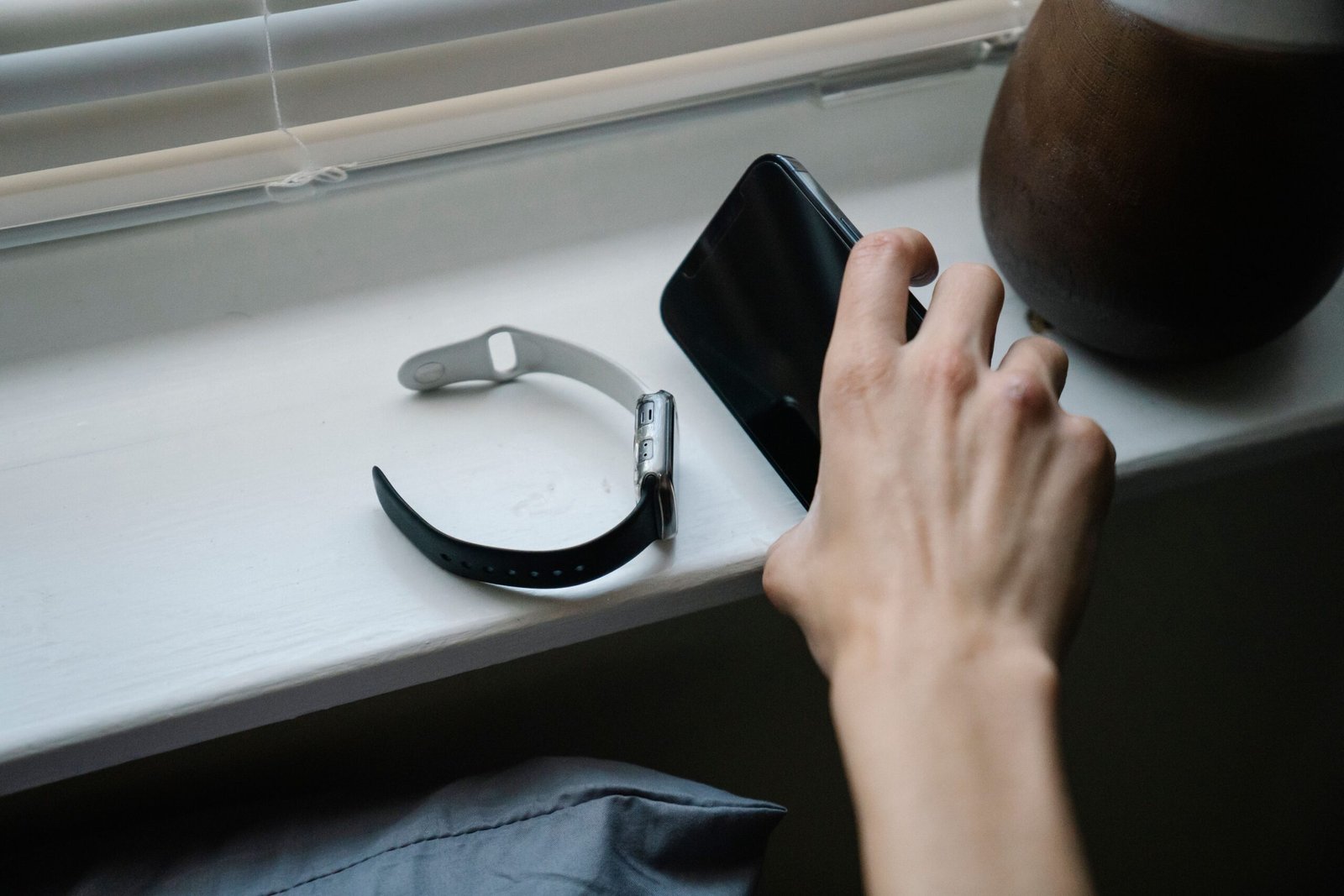
If your iPhone alarm is quiet even at max volume — or your iPhone alarm keeps getting quieter — you’re not imagining it. You set the alarm before bed, confident you’ll wake on time, then morning comes and the sound is barely there, or it fades to a whisper the moment you glance at the screen. The fix for low iPhone alarm volume isn’t a repair; it’s a few settings. One of them is the culprit behind “my alarm is quiet even though volume is max” more than anything else. Fix it and your alarm blasts at full volume from the first beep. Below we walk through the 4 real reasons an iPhone alarm gets quieter, then show you the exact settings to lock it loud for good. Most of this takes under two minutes.
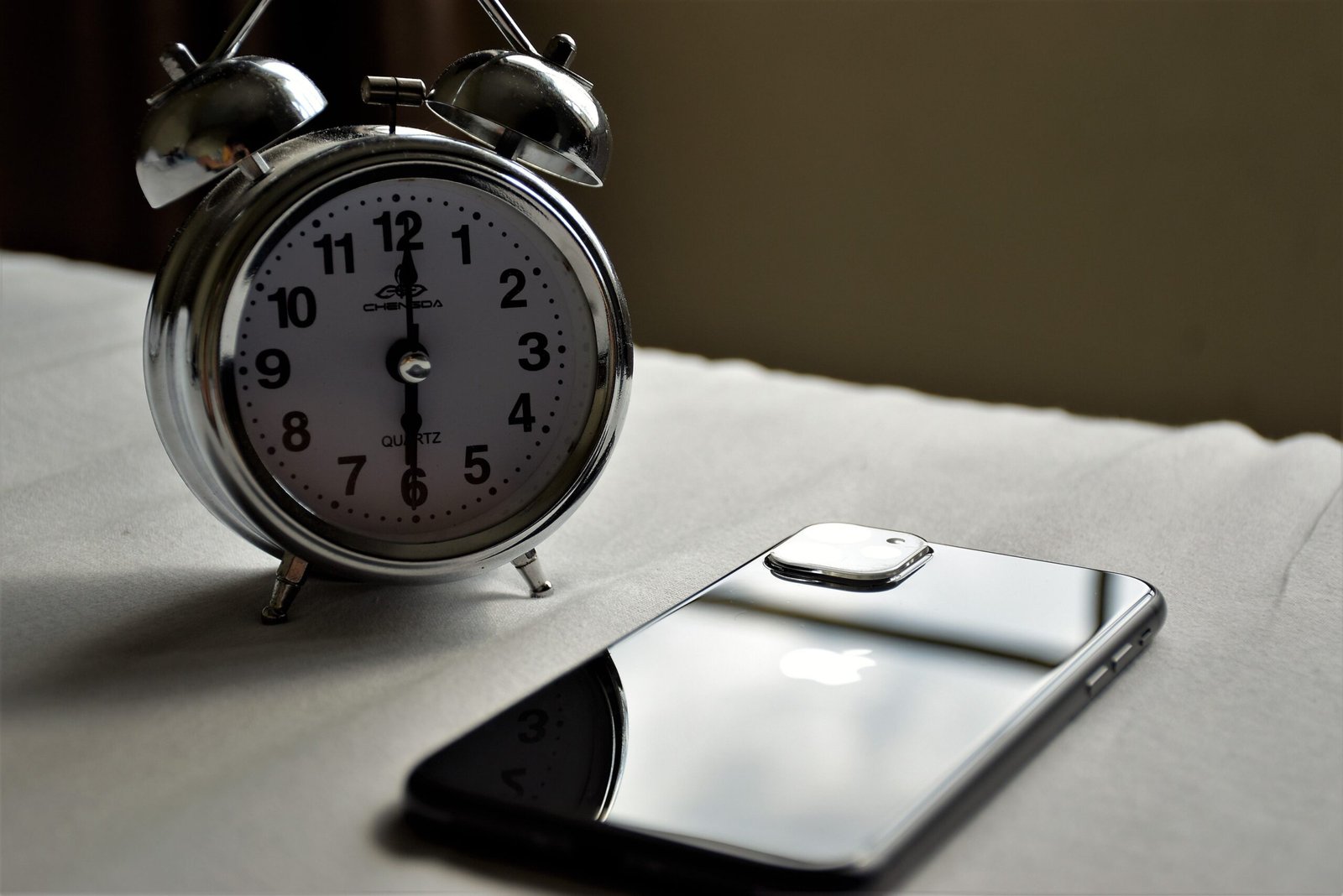
The 4 Causes of a Quiet iPhone Alarm (at a Glance)
A quick map so you know what you’re fixing:
| # | Cause | What happens |
|---|---|---|
| 1 | Attention Aware (Face ID) | Your iPhone lowers alert, ringer, and alarm volume when it thinks you’ve noticed the screen. The most-missed cause. |
| 2 | Low ringer / alarm volume | On iPhone, ringer and alarm volume are linked. Lower one by accident and the alarm drops too. |
| 3 | Focus / Sleep mode | Sleep Focus quiets the screen and notifications, which can make the alarm feel smaller. |
| 4 | Bluetooth / headphones + Headphone Safety | Sound routes to earbuds, or the auto volume-limit kicks in and pulls the alarm down. |
Of these, #1 (Attention Aware) is the villain behind “volume is maxed but the alarm is still quiet” far more often than people expect. Let’s fix them in order of impact.
Short on time? Jump straight to the #1 fix — turn off Attention Aware — and your alarm rings loud from the first beep. The whole fix takes about two minutes.
Why Is Your iPhone Alarm Volume Low? Turn Off Attention Aware (the #1 Fix)
iPhones with Face ID have a feature called Attention Aware. The name sounds fancy; the behavior is simple. When you’re looking at the screen, your iPhone decides “they’ve already noticed” and automatically lowers the volume of notifications, the ringer, and your alarm. Apple’s own documentation states it reduces alert volume when you’re looking at the device.
The problem: when your alarm goes off, most of us instinctively look at the phone. The instant you do, the alarm slides quieter — so it feels like “the alarm sound keeps fading.” One glance at the screen after waking up is enough to shrink it.
How to turn it off:
- Open Settings.
- Tap Face ID & Passcode, then enter your passcode.
- Scroll down to Attention Aware Features and switch it off.
That single toggle makes the alarm ring at a steady, full volume from start to finish. It fixes roughly 90% of “volume is maxed, why is it quiet?” cases. Attention Aware only runs on Face ID models (iPhones without a home button). That’s why so many people say “my old iPhone was fine, but the alarm got quiet after I upgraded” — it’s almost always this feature. Turning it off also stops the ringer from dipping right before you answer a call, so your call ringtone stays crisp too.
iPhone Alarm Volume Low? Check the Ringer & Alerts Slider
On iPhone, ringer and alarm volume are tied together. Lower the ringer and the alarm drops with it. That’s separate from media volume (music, video), which is why you can have loud YouTube but a tiny alarm.
To raise alarm volume:
- Go to Settings → Sounds & Haptics.
- Drag the Ringer and Alerts slider all the way to the right.
One more thing on that screen: Change with Buttons lets the side volume buttons adjust ringer/alarm volume during calls or normal use. If it’s on, every time you press the side buttons you may be shrinking your alarm without realizing it. Set the slider to max, then turn Change with Buttons off. After that, the side buttons only control media volume, and your alarm stays locked at the slider value.
A common mix-up: media volume and ringer/alarm volume are different things. The volume you raise with the side button while watching video is media volume — it never touches the alarm. The alarm is controlled only by the Ringer and Alerts slider in Settings. So if “music and YouTube are loud but the alarm is quiet,” that slider is almost certainly sitting low. The volume bar in Control Center before you sleep is usually media volume too — raising it does nothing for the alarm. Always check the slider in Settings.
iPhone Alarm Getting Quieter at Night? Check Sleep Focus
If you run Sleep Focus every night, check this. When Sleep Focus turns on, the screen dims and notifications go quiet, which can make the alarm feel smaller. Specifically, the Clock app’s Bedtime alarm and a regular alarm behave a little differently — the Bedtime alarm is designed to rise gently with your sleep schedule, so it can leave a “soft wake-up” impression.
To check:
- Go to Settings → Focus.
- Tap Sleep and review the settings; make sure it isn’t muting more than you want.
- If you want a guaranteed loud wake-up, add a separate regular alarm in Clock → Alarm instead of relying only on the Bedtime alarm.
Focus mode itself won’t stop the alarm from ringing, but it affects perceived volume and how it wakes you, so it’s worth one look. Sleep Focus can be scheduled to switch on automatically at bedtime — if you don’t know that, you’ll wonder “why is the alarm weak only at night?” If you’re a deep sleeper, keep Sleep Focus’s notification blocking on but set the wake-up alarm as a separate, full-volume regular alarm. You block distractions all night and still wake hard in the morning.
Alarm Sound Leaking to Bluetooth? Headphones & Headphone Safety
Sometimes the alarm isn’t quiet — it’s just going somewhere else. The usual suspect is Bluetooth.
- Bluetooth earbuds / speaker connected — the alarm may route to the connected device instead of the built-in speaker, so it sounds small at the pillow. Turn Bluetooth off or disconnect before sleep.
- Headphone Safety (Reduce Loud Sounds) — iOS automatically lowers very loud audio to protect your hearing. If you sleep with earbuds in, this can pull alarm volume down too. Check it under Settings → Sounds & Haptics → Headphone Safety.
Some earbuds (AirPods) send sound back to the phone when removed from your ear, but if they stay in or the case stays open, the connection holds and the alarm leaks that way. When the connection is ambiguous, the alarm won’t wake you well — so disconnect completely for certainty. Bottom line: at night, drop the earbuds/Bluetooth and let the alarm ring from the built-in speaker. Laying the phone face-up so the speaker points up also makes a real difference; face-down under a pillow muffles it.
The Core Settings to Lock Your Alarm Loud (All-in-One)
Now that we’ve covered the causes, here’s the full sequence to keep your alarm loud every time. Do them top to bottom:
- Turn off Attention Aware — Settings → Face ID & Passcode → Attention Aware OFF (most important)
- Max the Ringer & Alerts slider — Settings → Sounds & Haptics → drag to the end
- Turn off Change with Buttons — same screen, lock the side buttons out of volume
- Drop Bluetooth / earbuds at night — let the alarm use the built-in speaker
- Pick a loud alarm sound — Clock → edit alarm → Sound → choose a clear, rising ringtone
Just #1 and #2 fix most cases. A calm melody is weaker at waking you than a crisp, loud default ringtone (Radar, Alarm types) that starts loud. Pro tip: set two or three alarms one minute apart — if you miss the first, the next grabs you. Different sounds per alarm also stop you from sleeping through one familiar tone. Turn on vibration too; with the phone by your head or hand, sound plus vibration wakes you harder. In the alarm editor, pick a sharp haptic pattern.
Still Quiet? Extra Checks
If you’ve done all the above and it’s still faint, run through these:
- iOS update — temporary sound bugs often get fixed by an update. Settings → General → Software Update.
- Reboot — when alarms/sound glitch, a power cycle often restores normal behavior.
- Recreate the alarm — old alarms can misbehave; delete and add a fresh one.
- Speaker check — if calls and music are also quiet, it may be dust/debris or hardware. If only the alarm is quiet, it’s almost certainly a setting.
If everything is quiet after all this, it’s the device itself — visit a service center for a speaker check. A case blocking the speaker holes, or water on a waterproof model leaving sound muffled, can also be the cause. But when it’s “only the alarm,” the fix is almost always in the settings above.
FAQ
Q1. Volume is maxed but the alarm is still quiet — why?
Almost always Attention Aware. When your alarm rings and you look at the screen, iPhone auto-lowers the volume. Settings → Face ID & Passcode → turn off Attention Aware.
Q2. I only lowered the ringer and the alarm got quiet too.
iPhone links ringer and alarm volume. Settings → Sounds & Haptics → raise the Ringer and Alerts slider and the alarm rises with it.
Q3. I want to stop the side button from changing alarm volume.
Settings → Sounds & Haptics → turn off Change with Buttons. The side buttons then control only media volume; ringer/alarm stay at the slider value.
Q4. The alarm ramps up — can it start loud?
Some sounds are designed to swell. In Clock → edit alarm → Sound, pick a default ringtone that starts loud, and turn off Attention Aware; it’ll ring loud from the first second.
Q5. Does Sleep Focus make the alarm weak?
The Bedtime alarm is designed to rise gently with your sleep schedule, so it can feel soft. Add a separate full-volume regular alarm in Clock → Alarm if you want a hard wake.
Wake Up to a Loud Alarm Tomorrow
A quiet iPhone alarm is rarely a hardware fault — it’s settings doing their job a little too well. Turn off Attention Aware, max the Ringer & Alerts slider, lock the side buttons out, and let the built-in speaker do the work. Do that tonight and your alarm will blast from the first beep. Bookmark this guide for the next time an update resets something, and share it with the friend who’s always “accidentally” sleeping through their alarm.